
Add a customer
Keep every customer in one place, with their phone, email and address, ready for jobs, estimates and invoices.
5 steps
- 1
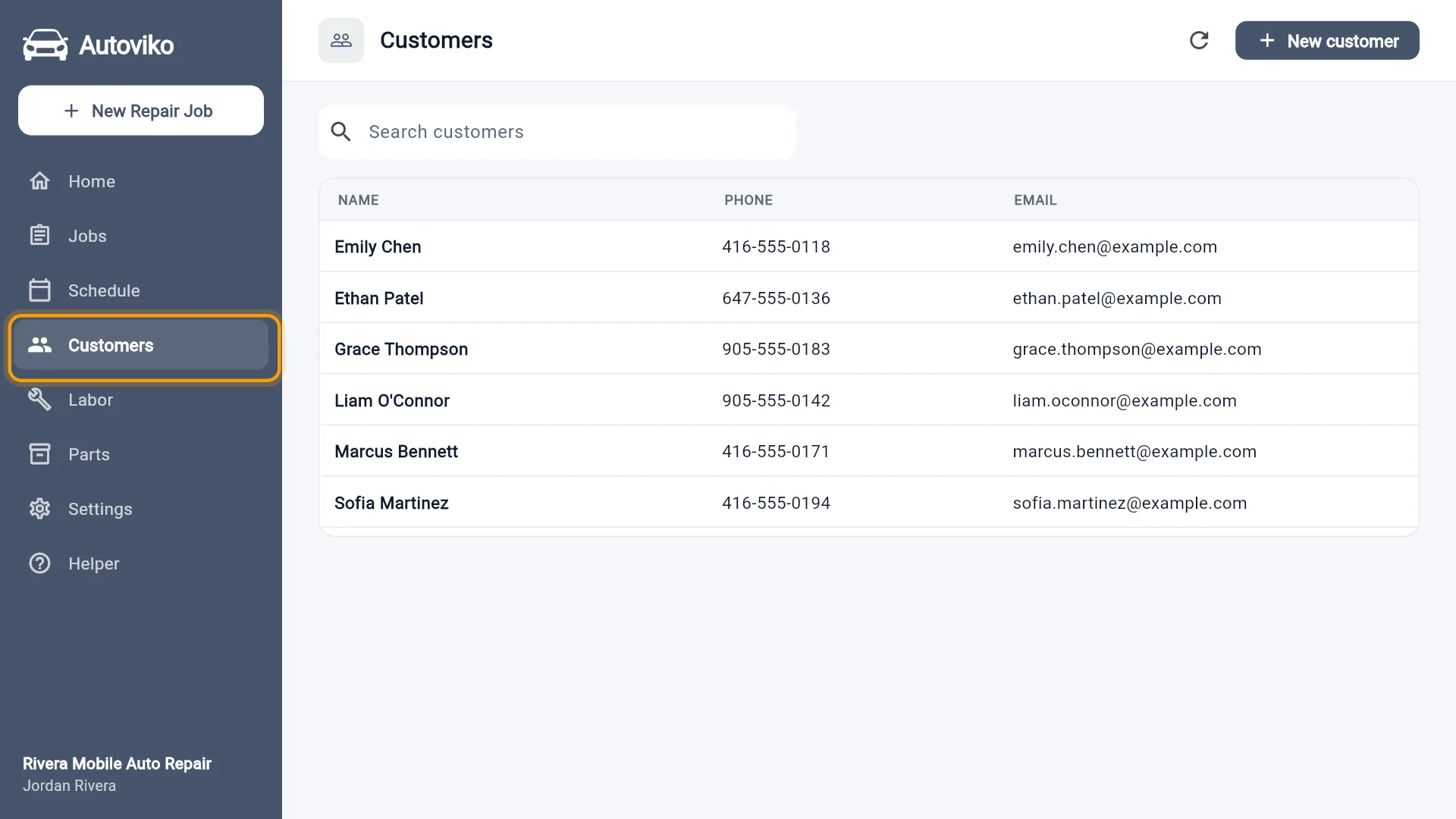
Open Customers
Click Customers in the menu on the left. The list shows every customer with their phone and email.
- 2
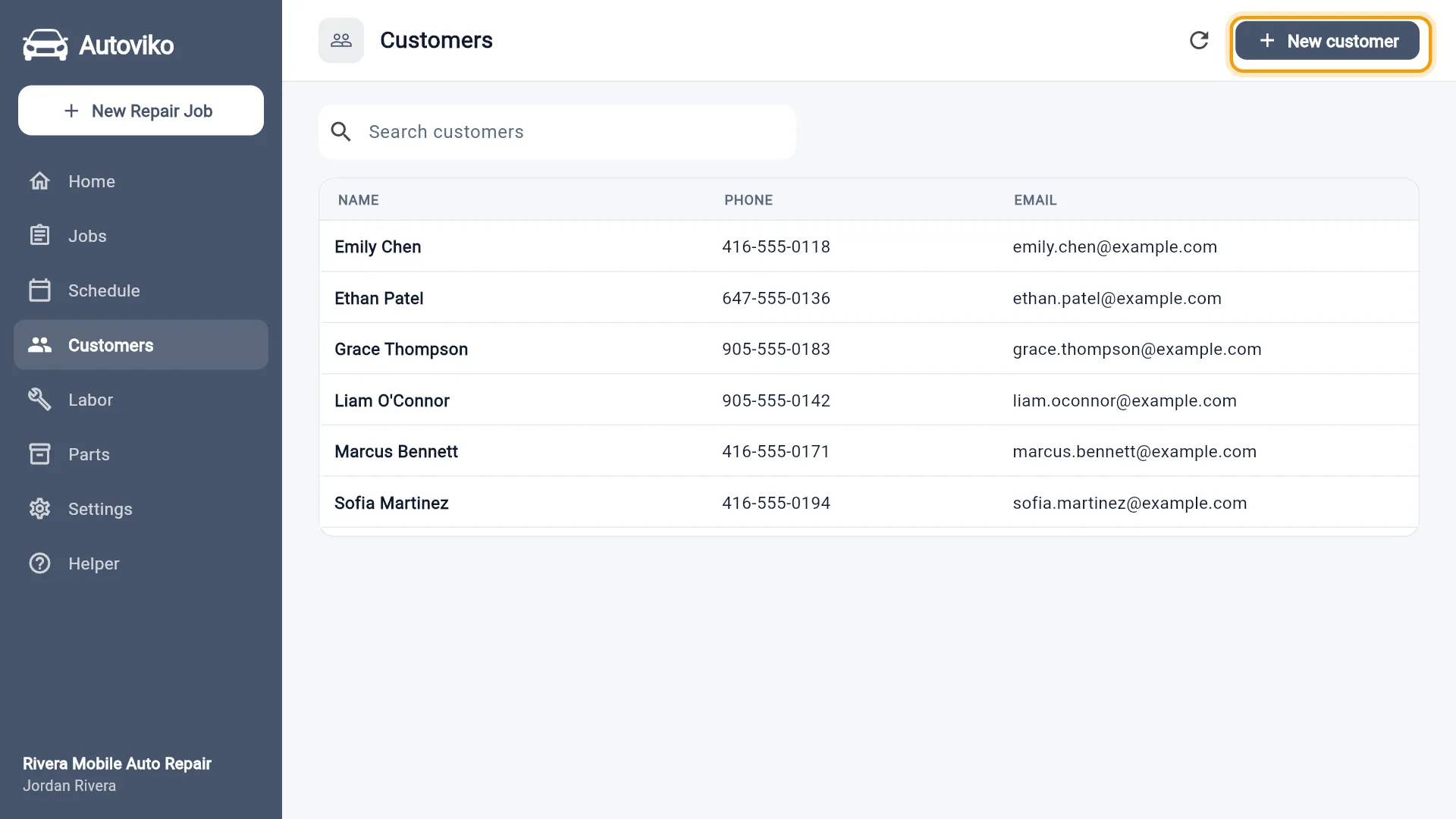
Click “New customer”
Click New customer at the top right of the list.
- 3
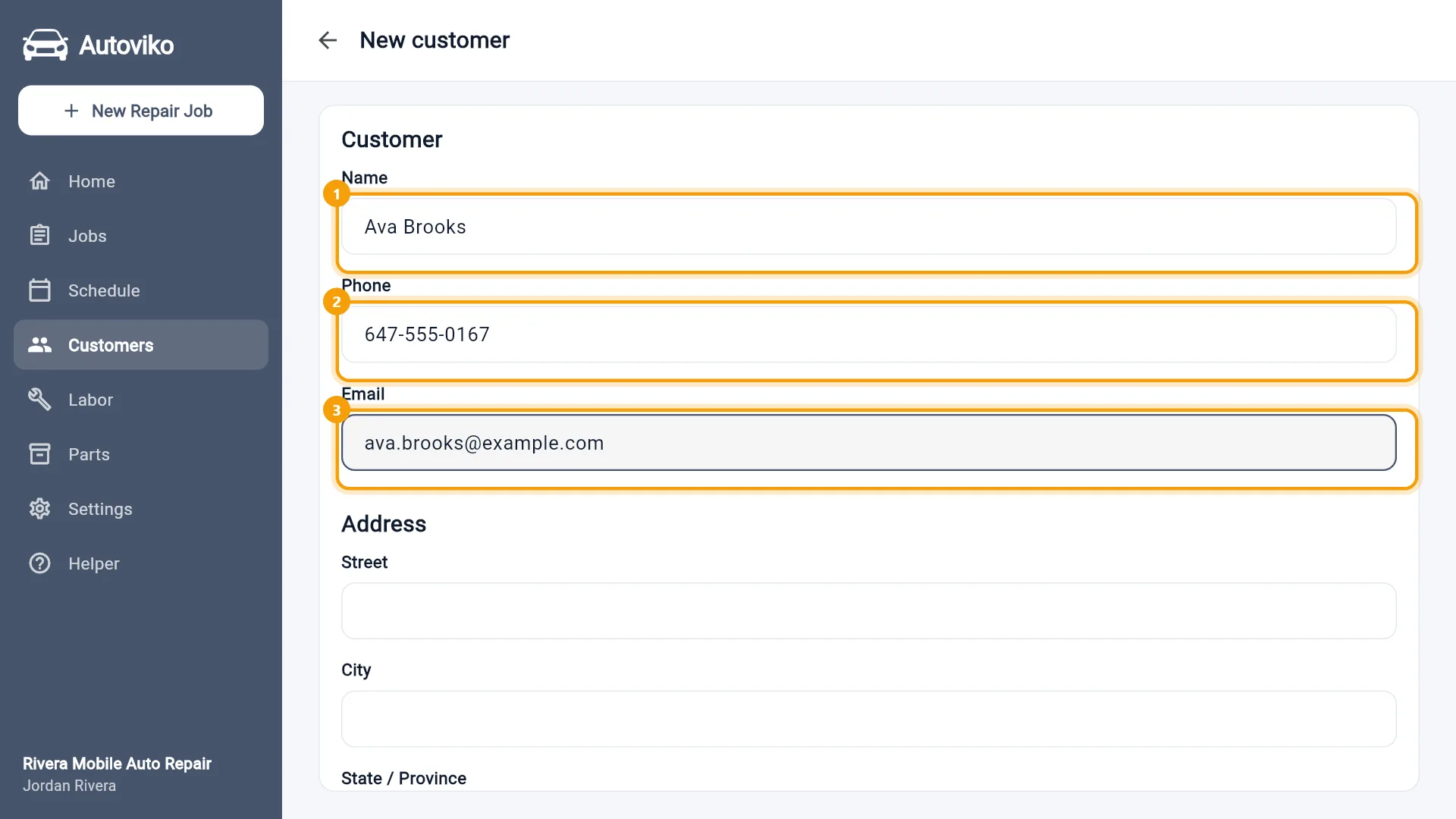
Enter the customer’s details
Type the Name, Phone and Email. Only the name is required, but a phone or email lets you send estimates and invoices.
- 4
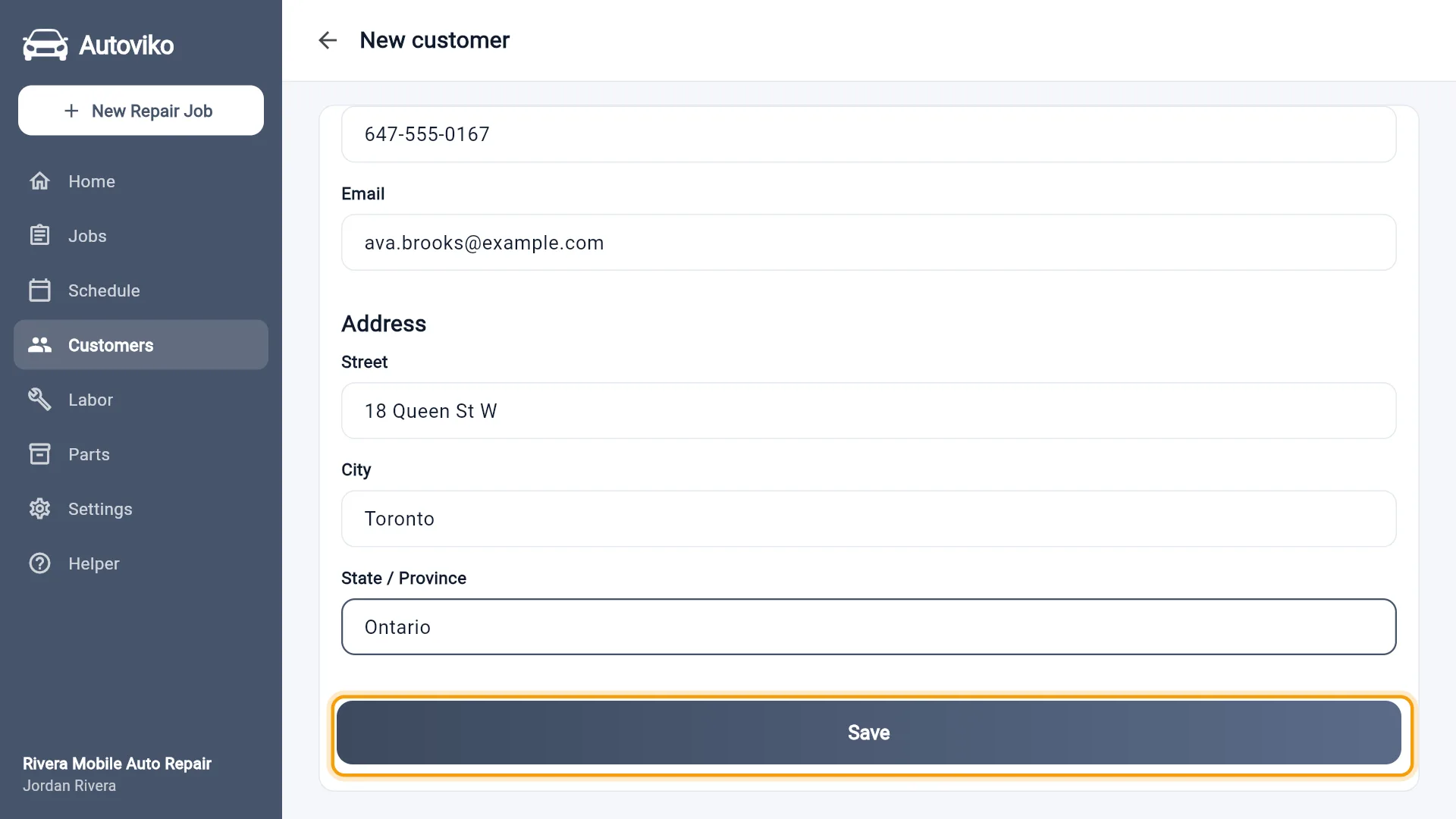
Add the address and save
Fill in the Address (it prints on estimates and invoices), then click Save.
- 5
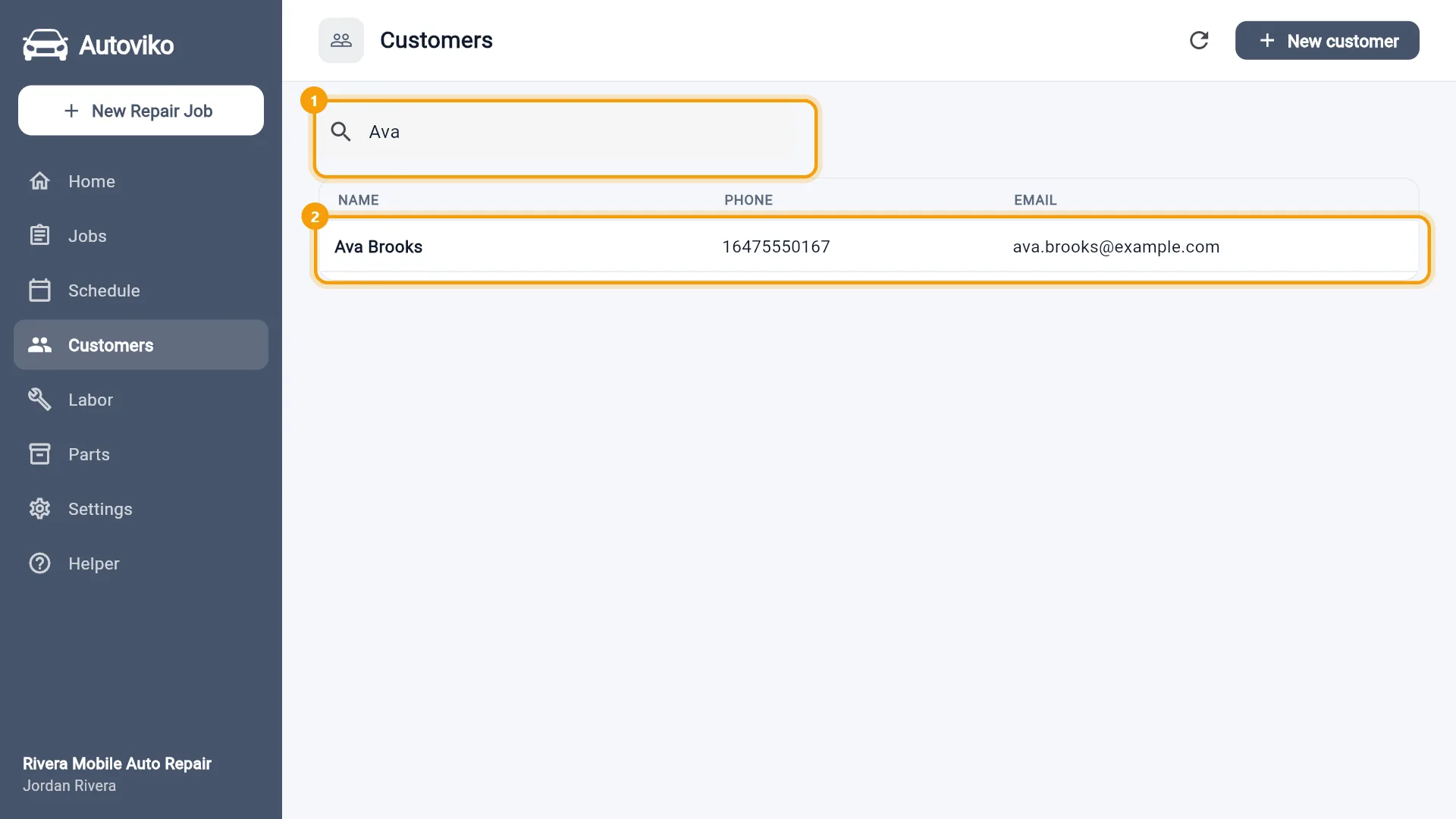
Find any customer in seconds
Back on the list, type a few letters in Search customers to find someone by name, phone or email. Click a customer to see their details and vehicles.
More in Customers & vehicles
Screenshots taken from the AutoViko web app in October 2026, using a demo shop with sample data. The same guide is in the app under Helper.