
Add a vehicle to a customer
Every repair job is tied to a vehicle. Add a car to its owner once, and it is ready for every job, estimate and invoice after that.
4 steps
Before you start: the vehicle’s owner should already be a customer (see Add a customer).
- 1
Open the customer
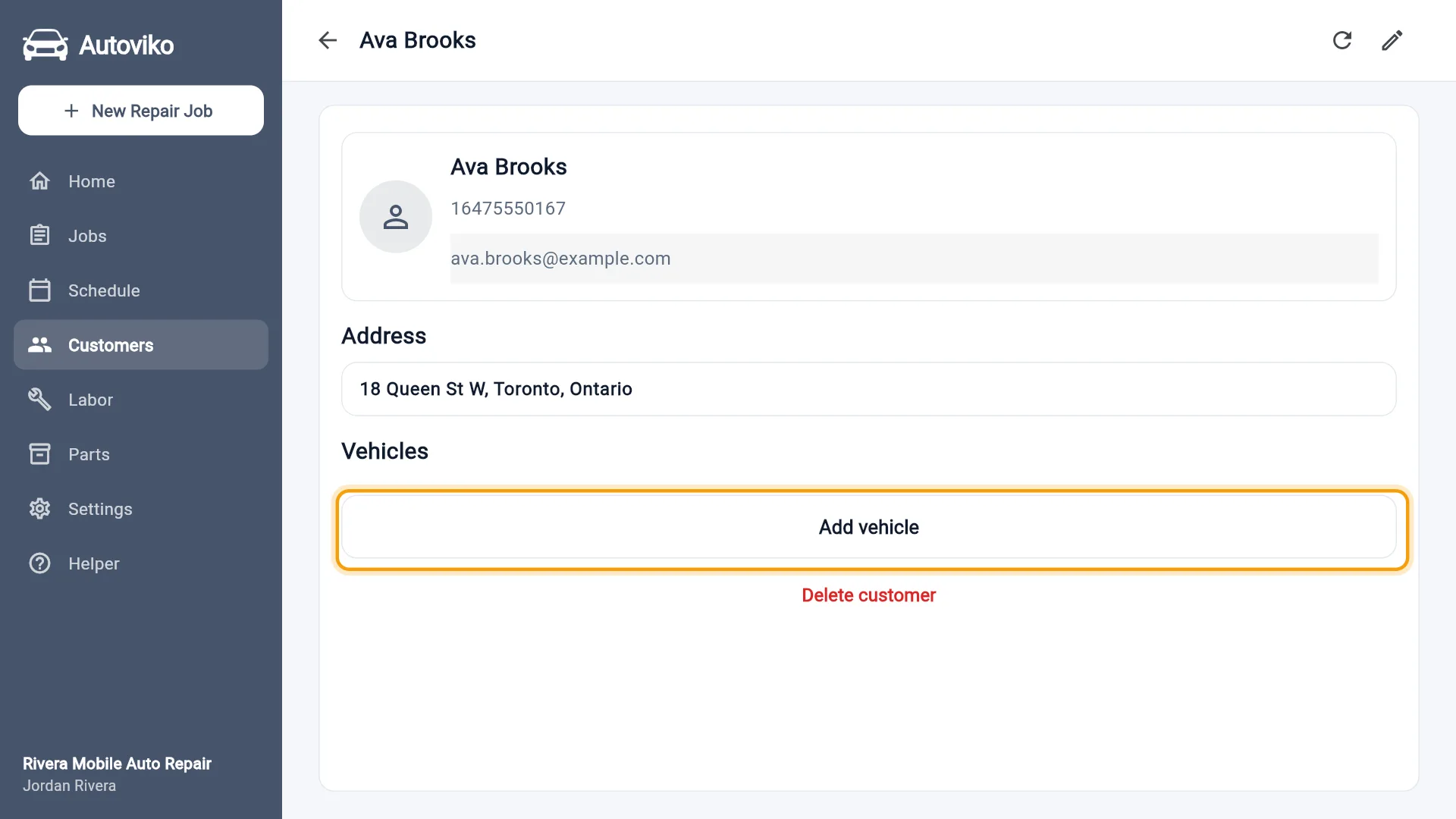
Go to Customers and click the customer’s name. Their page shows the contact details, the address and every vehicle they own.
- 2
Use the VIN, or enter the vehicle yourself
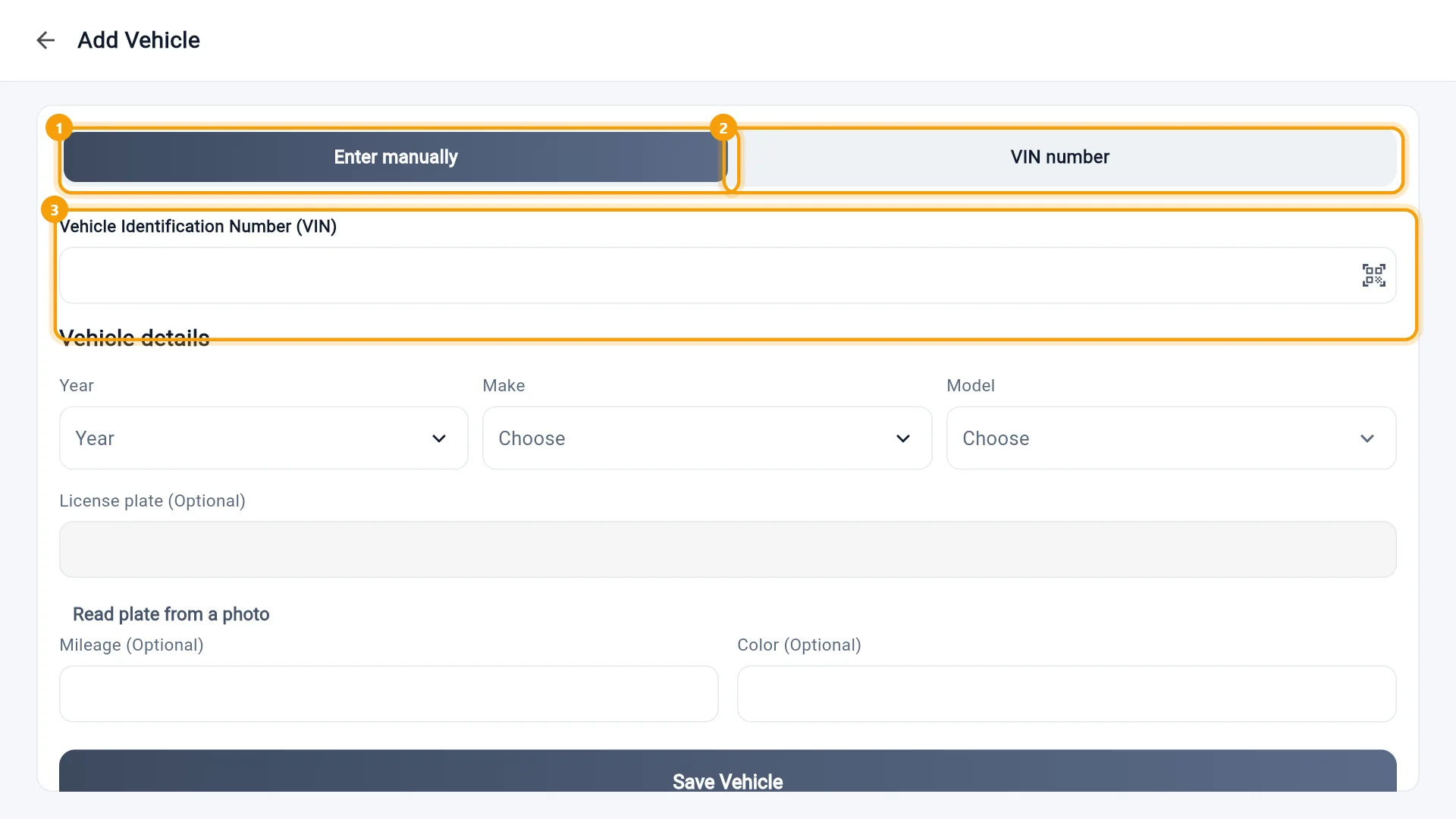
Click Add vehicle. Type the 17-character VIN (on a phone, Scan VIN barcode reads it with the camera), or choose Enter manually.
- 3
Pick the year, make and model
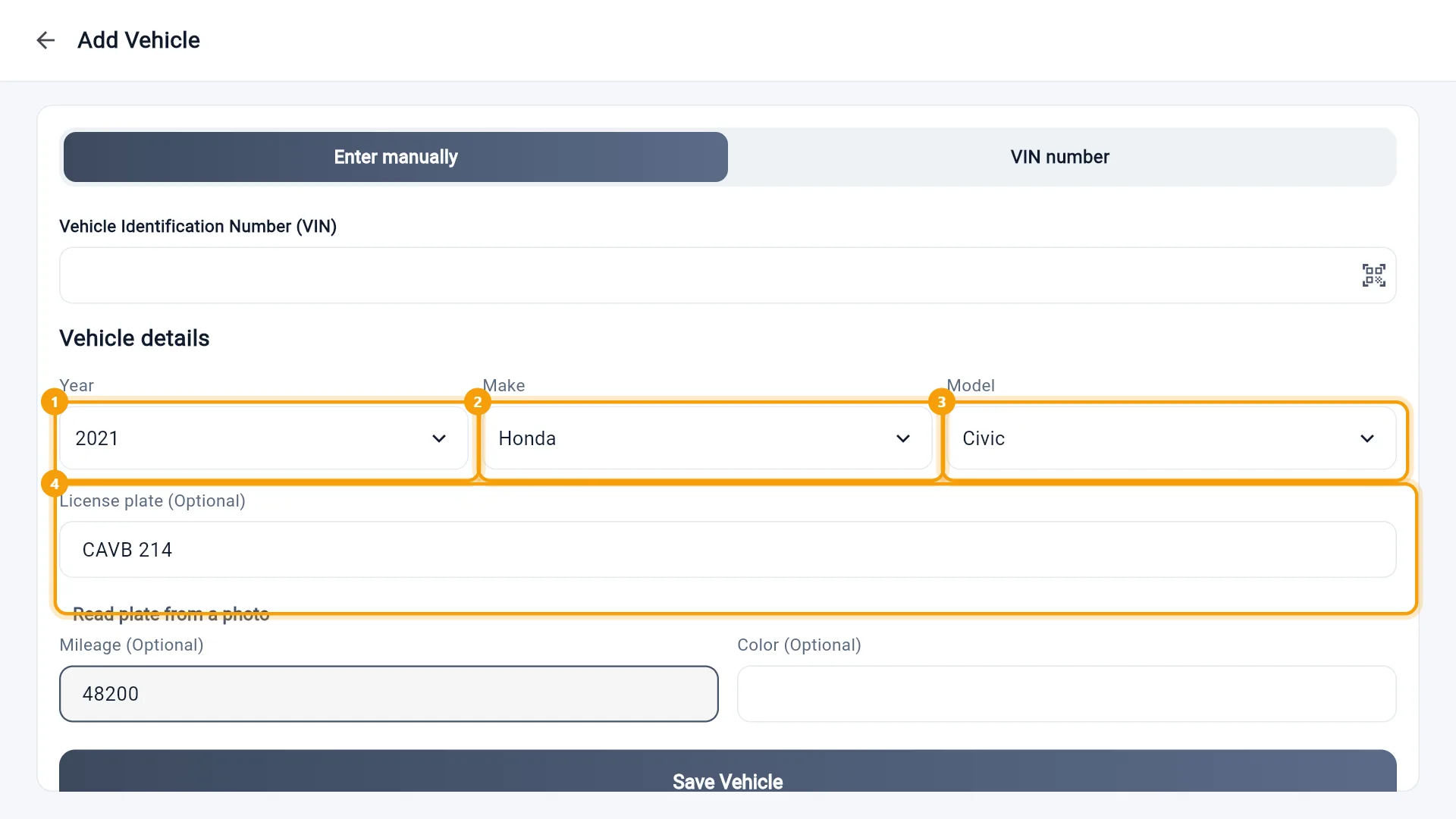
Choose the Year, Make and Model from the lists. Add the License plate, Mileage and Color if you have them.
- 4
Save the vehicle
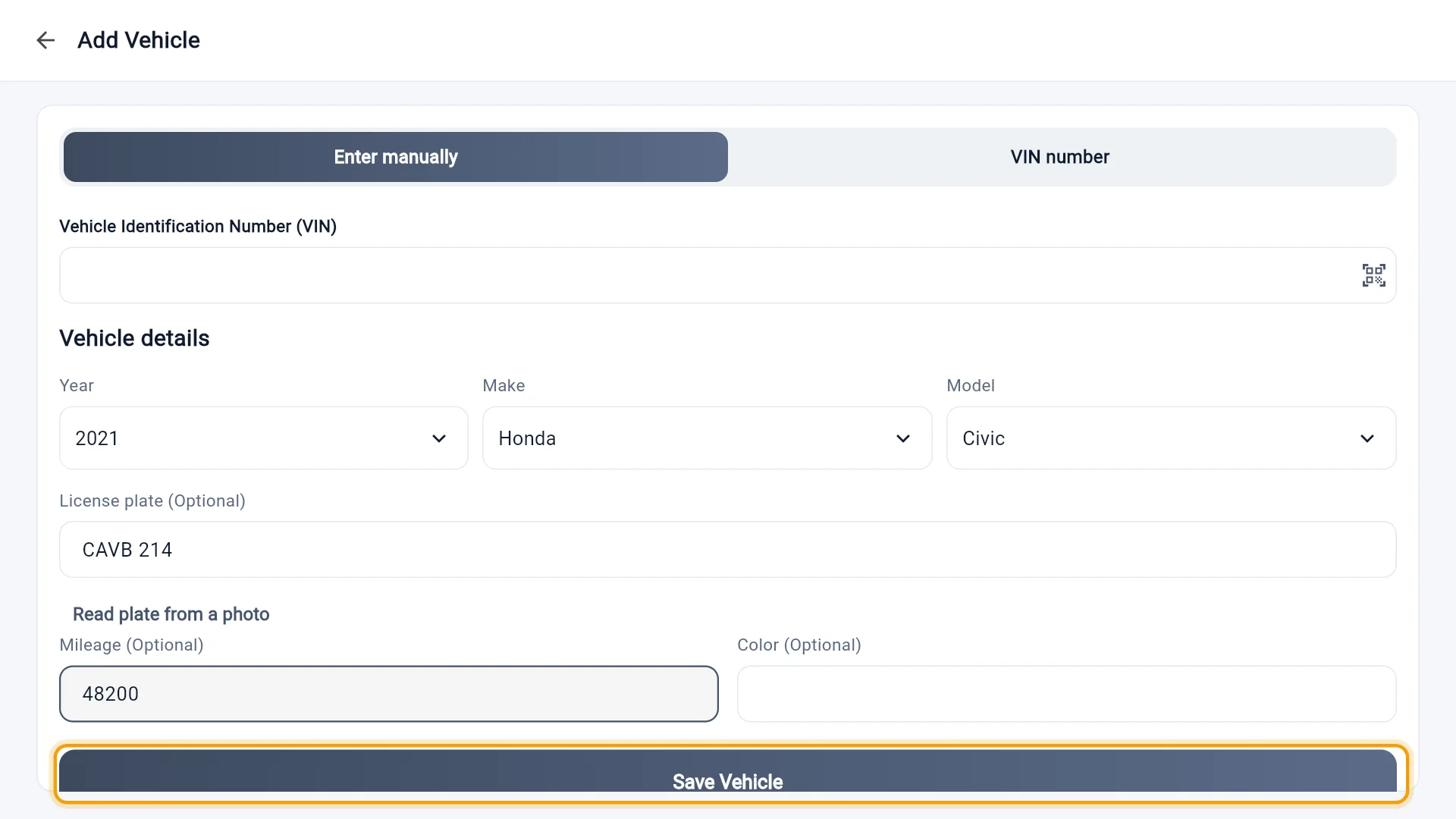
Click Save Vehicle. The car now appears under Vehicles on the customer’s page.
More in Customers & vehicles
Screenshots taken from the AutoViko web app in October 2026, using a demo shop with sample data. The same guide is in the app under Helper.