
Add a part to your price list
Save the parts you use often with their price, so adding them to a job takes one click.
4 steps
- 1
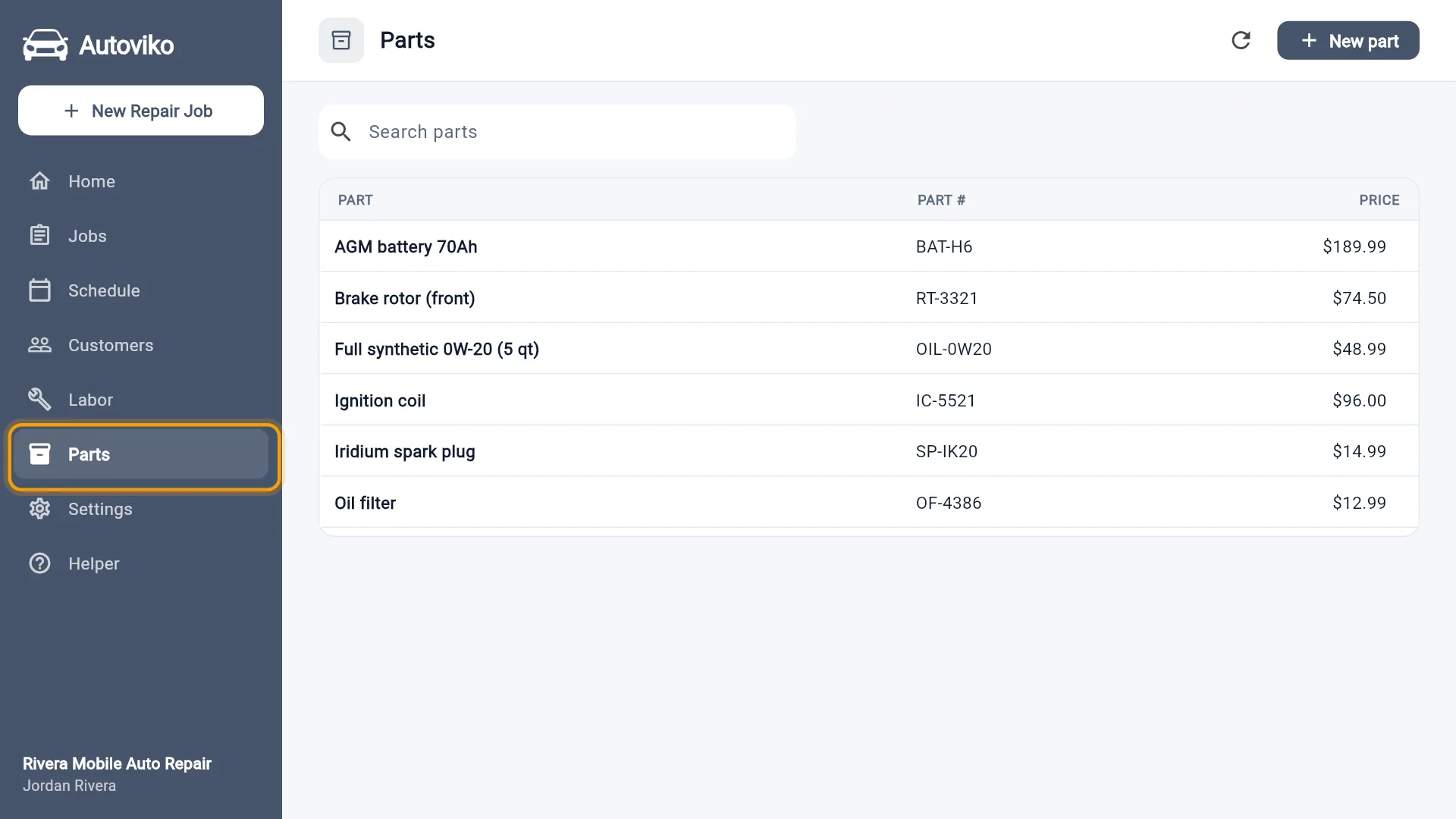
Open Parts
Click Parts in the menu (or Settings → Parts). The list shows every part with its part number and price.
- 2
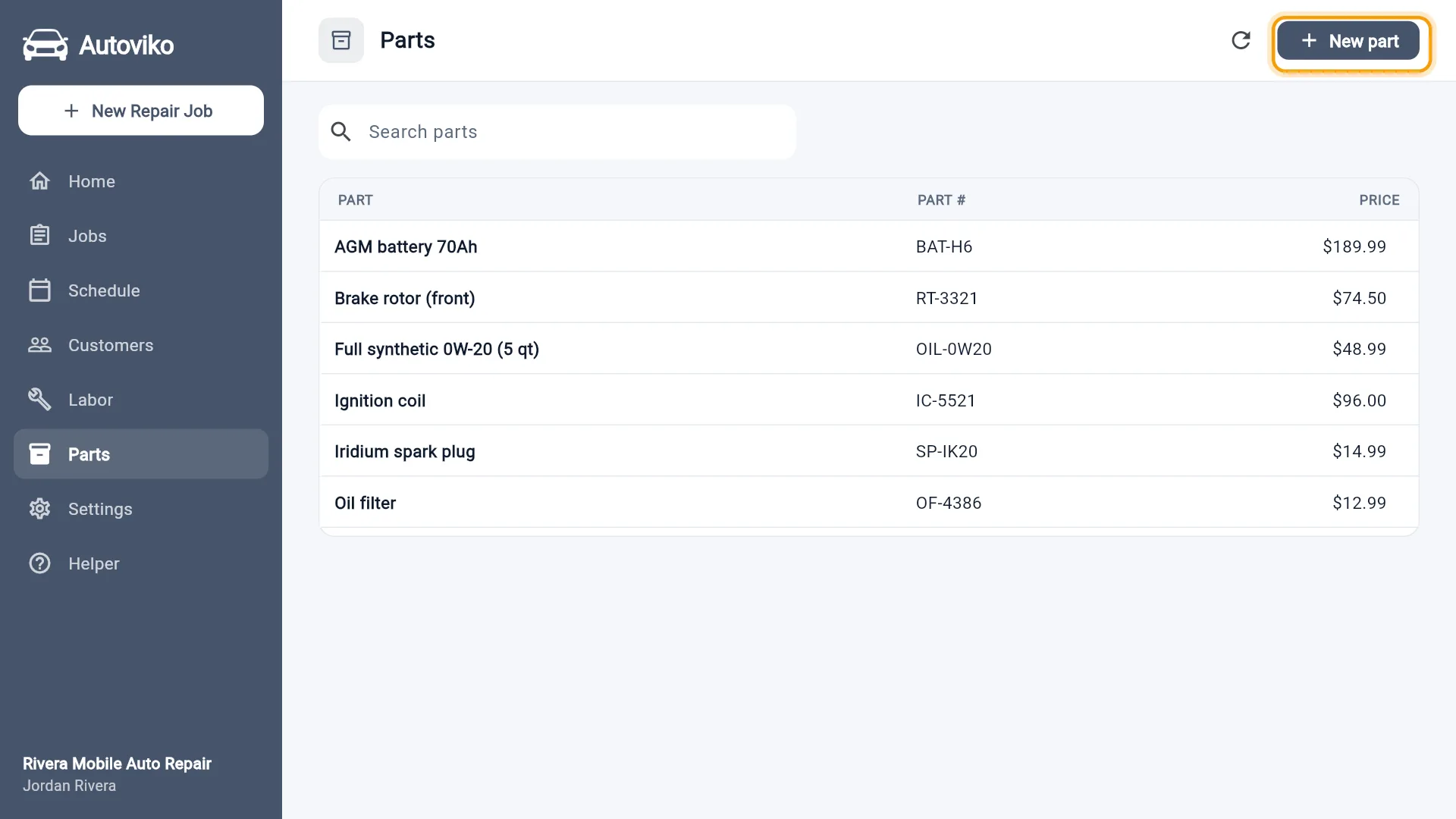
Click “New part”
Click New part at the top right.
- 3
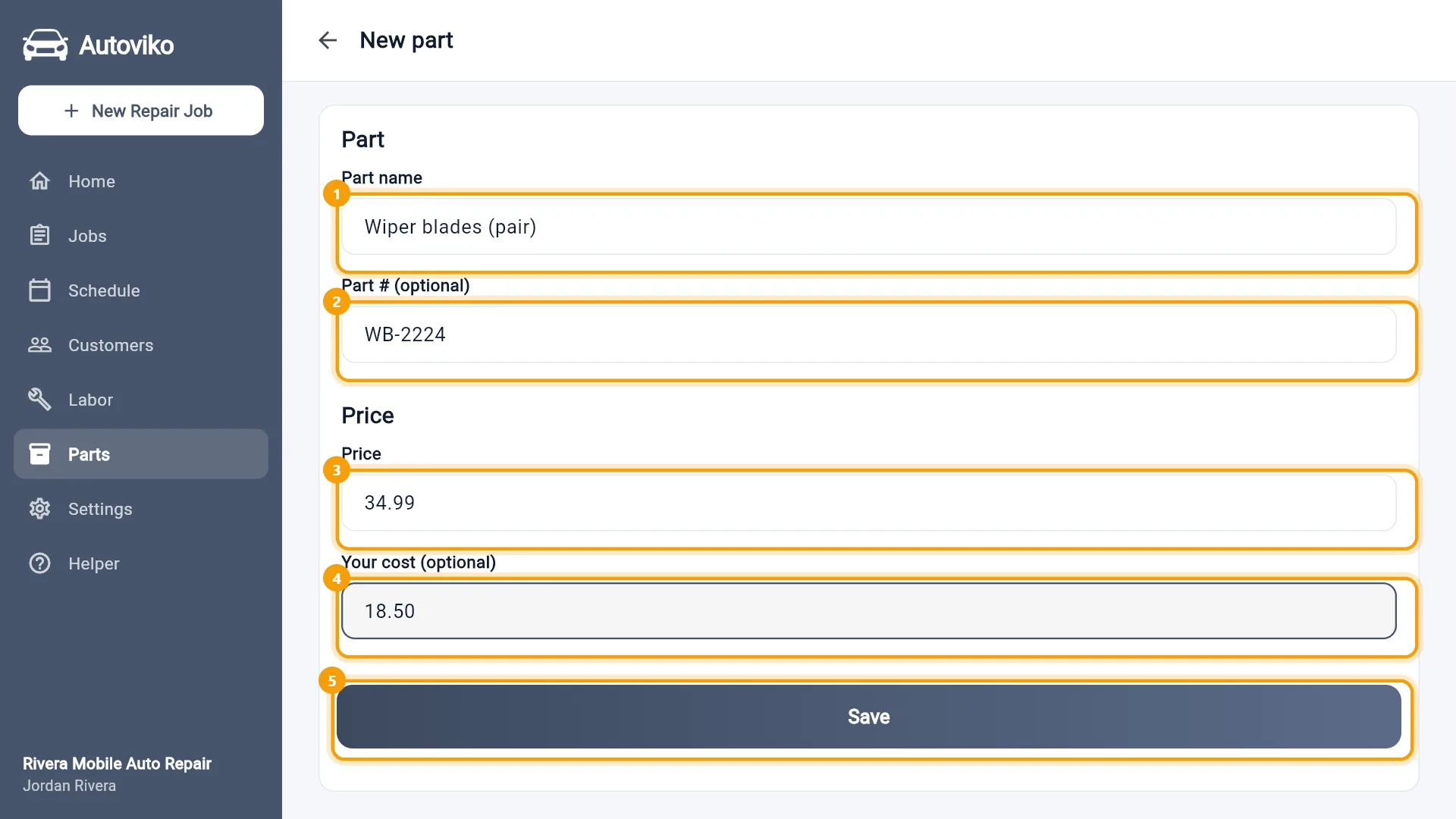
Enter the part
Type the Part name, the Part # if you have one, the Price you charge and, optionally, Your cost. Click Save.
- 4
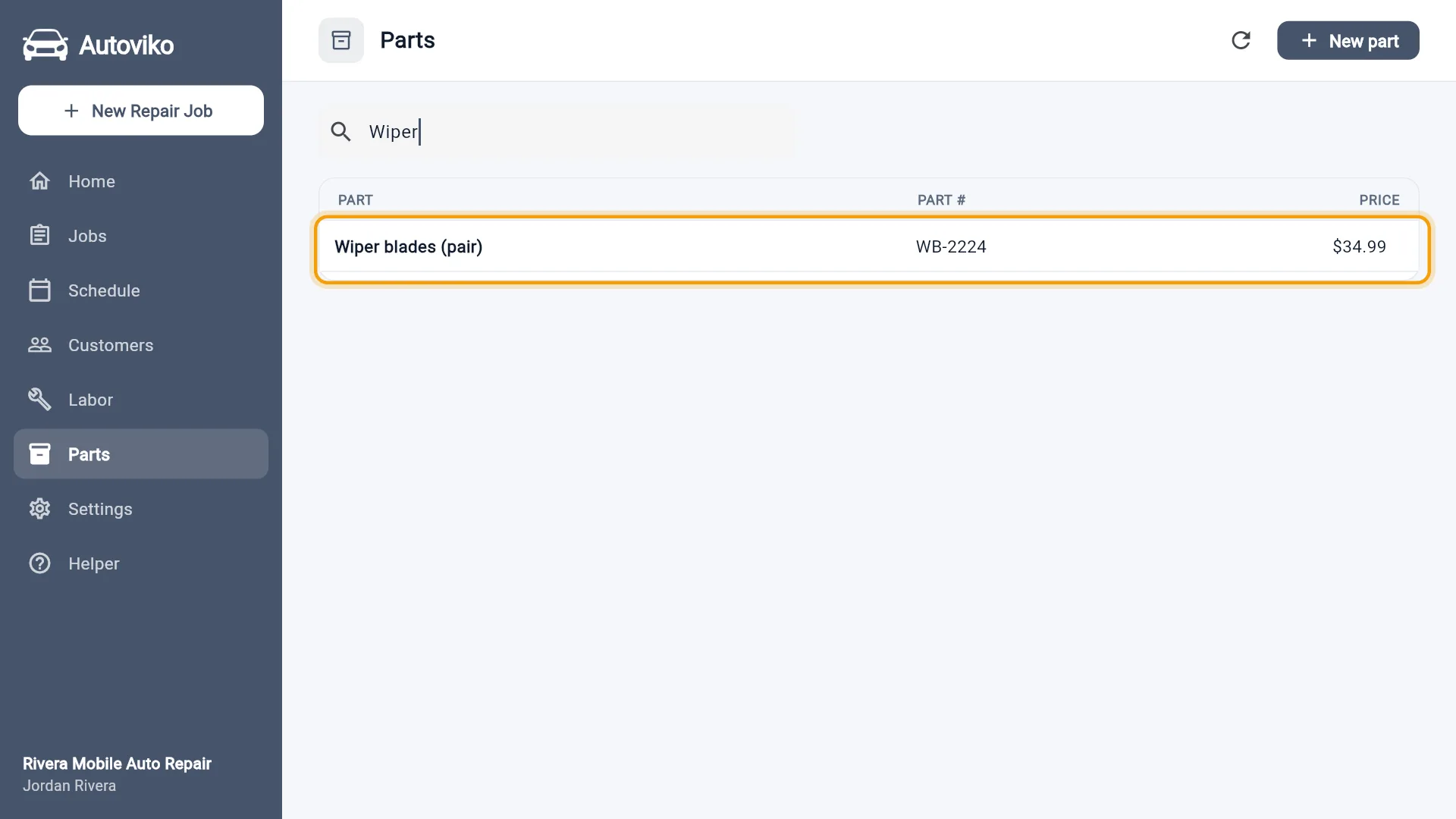
Use it on any job
The part is now in your list and in Add Parts on every job. Search for it and click +.
More in Price list
Screenshots taken from the AutoViko web app in October 2026, using a demo shop with sample data. The same guide is in the app under Helper.