
Choose your invoice template
Pick the layout of your invoices and estimates, see it live on one of your real invoices, and fine-tune the fields, colours and logo.
5 steps
- 1
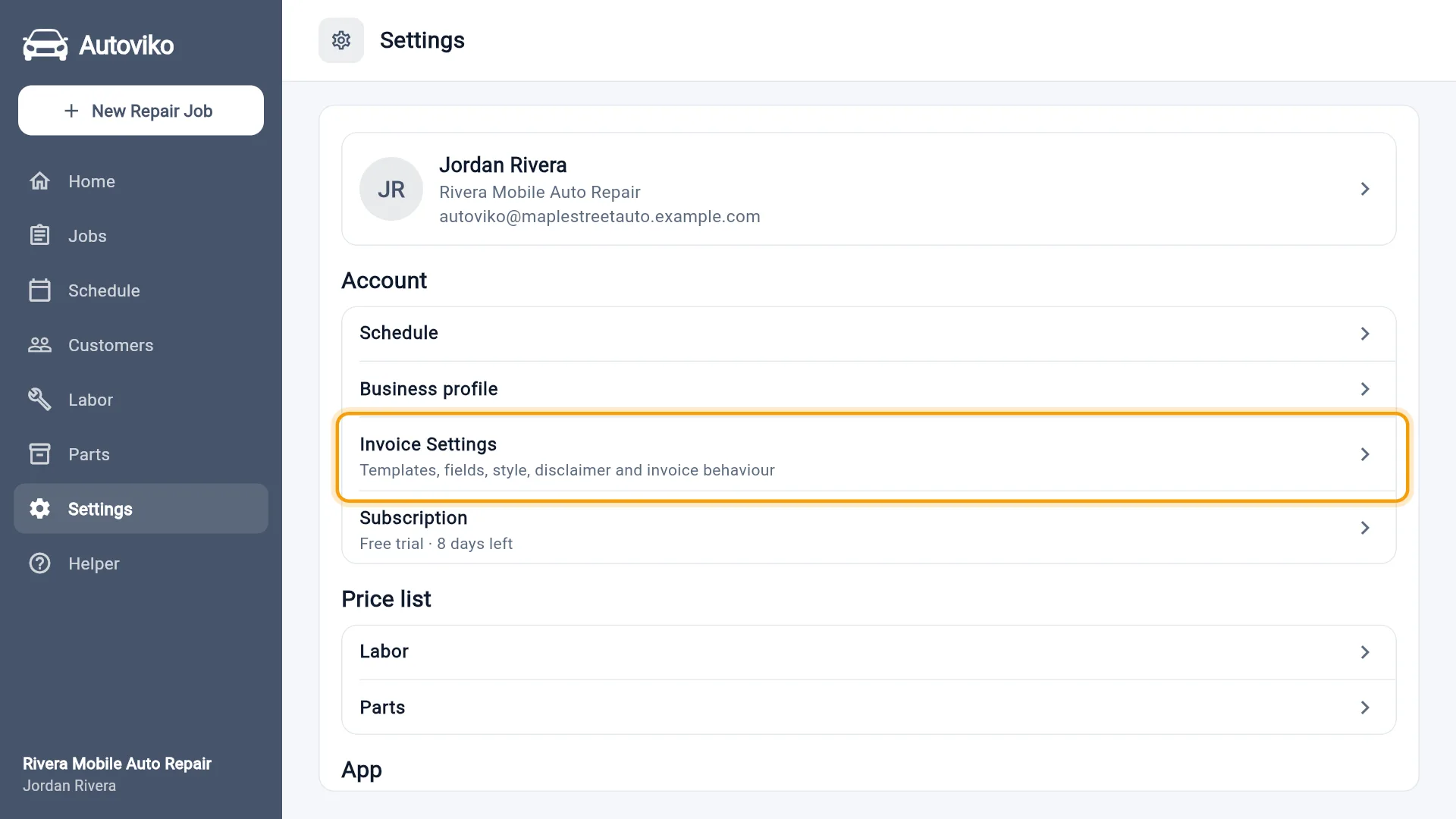
Open Settings → Invoice Settings
Click Settings in the menu, then Invoice Settings.
- 2
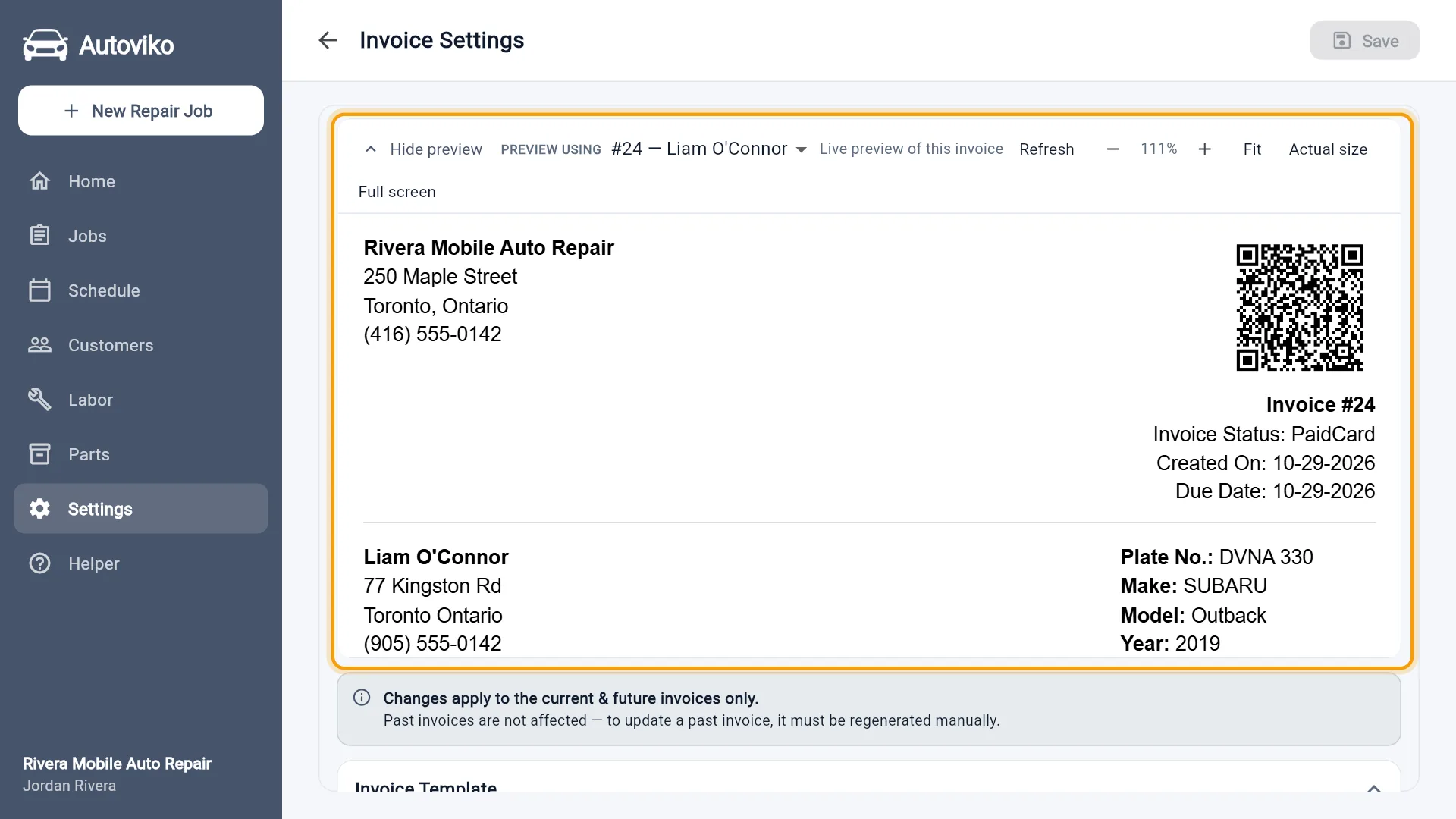
Live preview
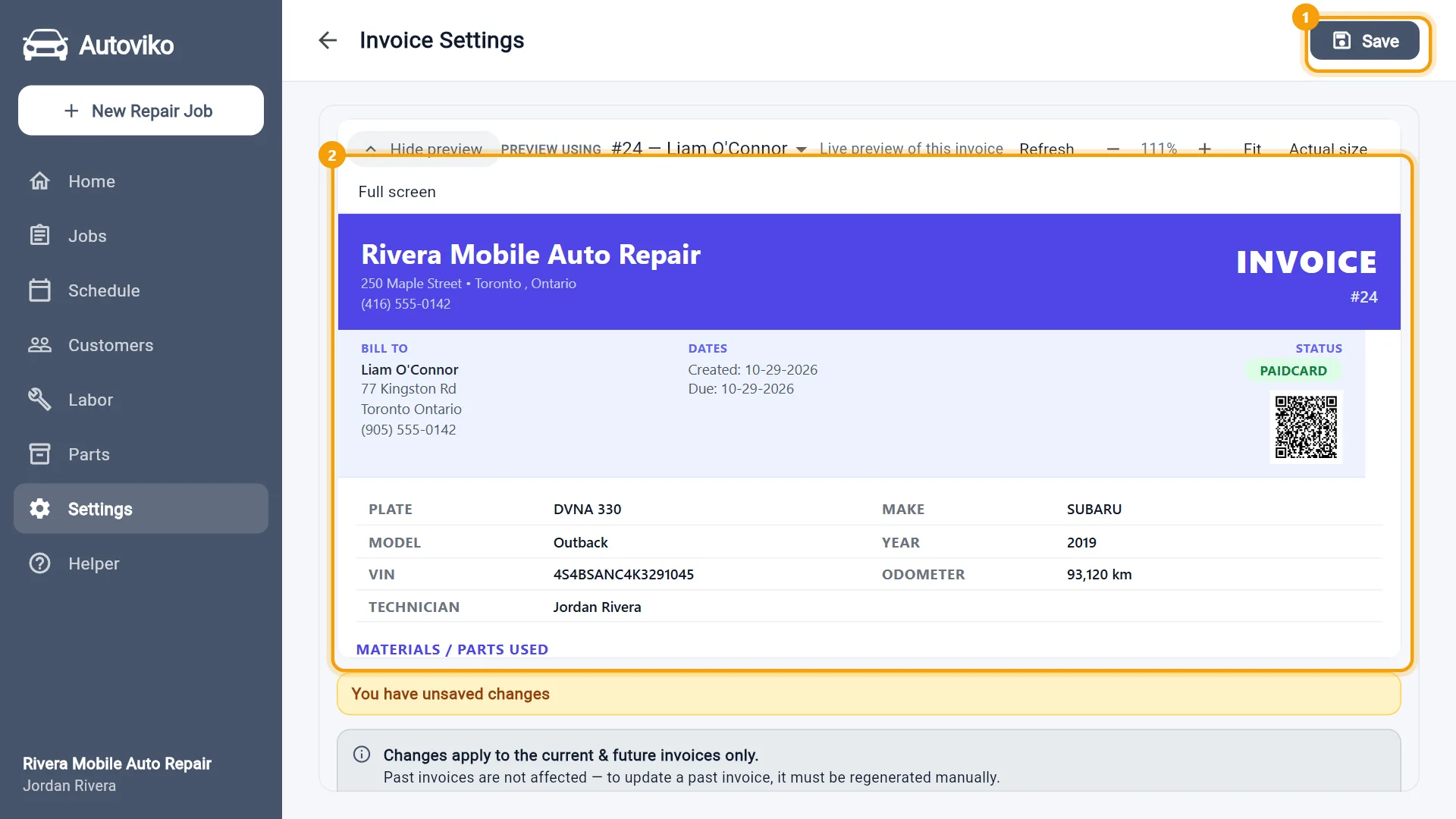
The top of the page shows a live preview of one of your invoices. Pick another invoice under Preview using, zoom with − / +, or open Full screen.
- 3
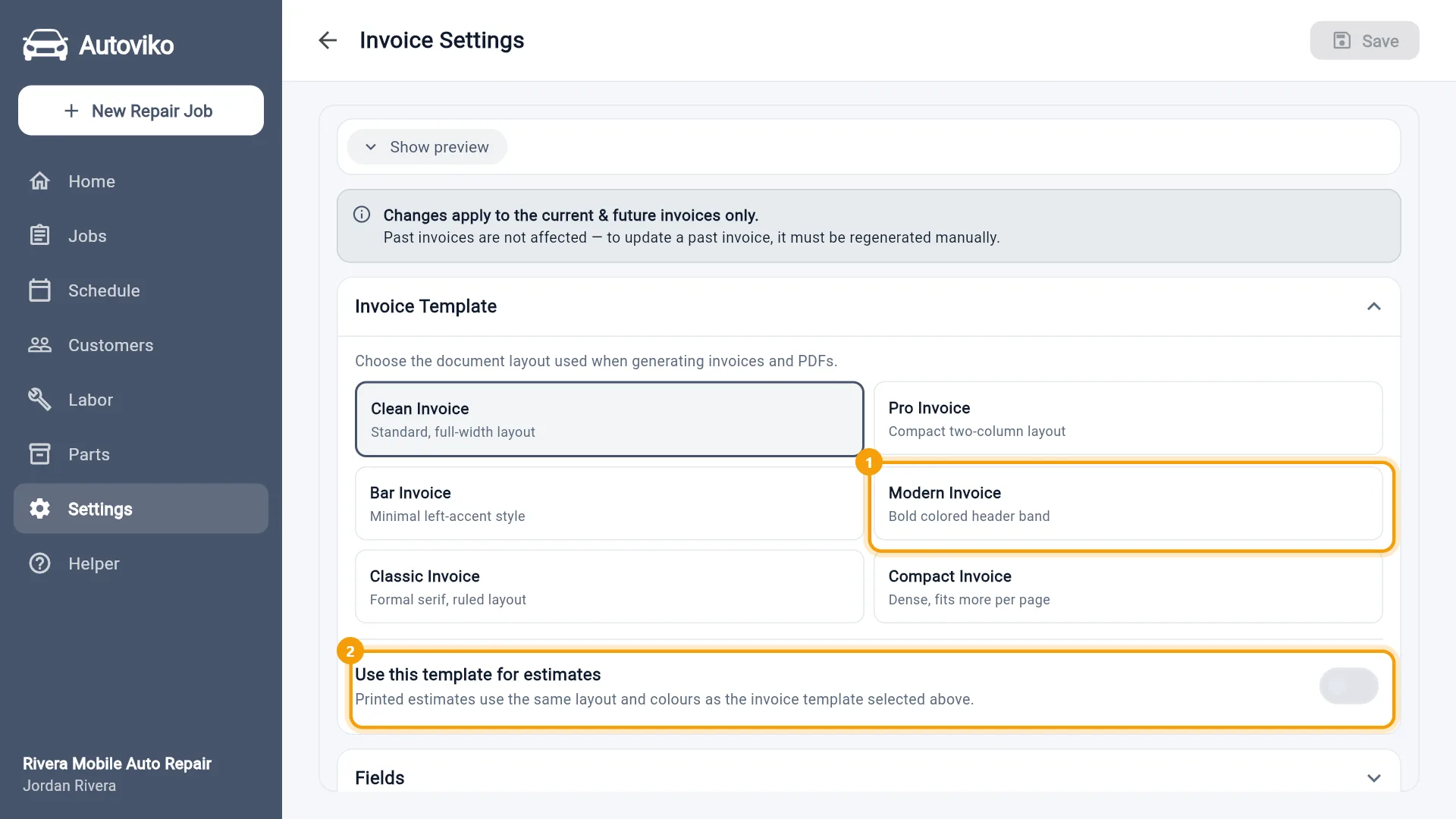
Choose a template
Under Invoice Template, pick a layout: Clean, Pro, Bar, Modern, Classic or Compact. Turn on Use this template for estimates to give estimates the same look.
- 4
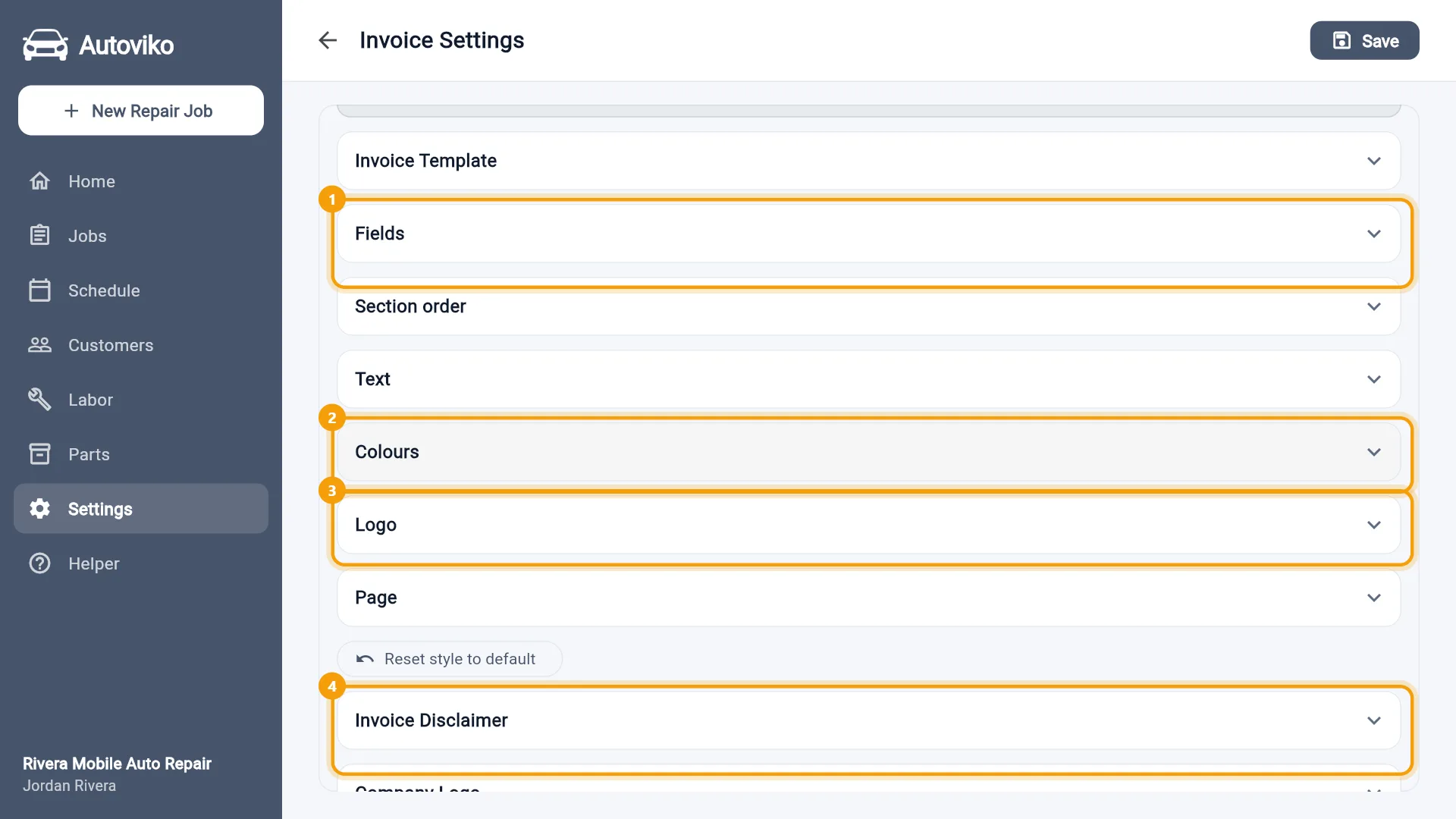
Fine-tune it
Open Fields, Section order, Text, Colours, Logo and Page to choose what prints and how it looks. Invoice Disclaimer adds your terms at the bottom.
- 5
Check the preview and save
Click Show preview to see your changes on a real invoice, then click Save. New invoices use the new design; past invoices stay as they were.
More in Schedule & settings
Screenshots taken from the AutoViko web app in October 2026, using a demo shop with sample data. The same guide is in the app under Helper.