
Create and send an estimate
Add the labor and parts to a job, and AutoViko builds a professional estimate with the totals and tax. Send it to your customer in a click.
5 steps
- 1
Add labor from your price list
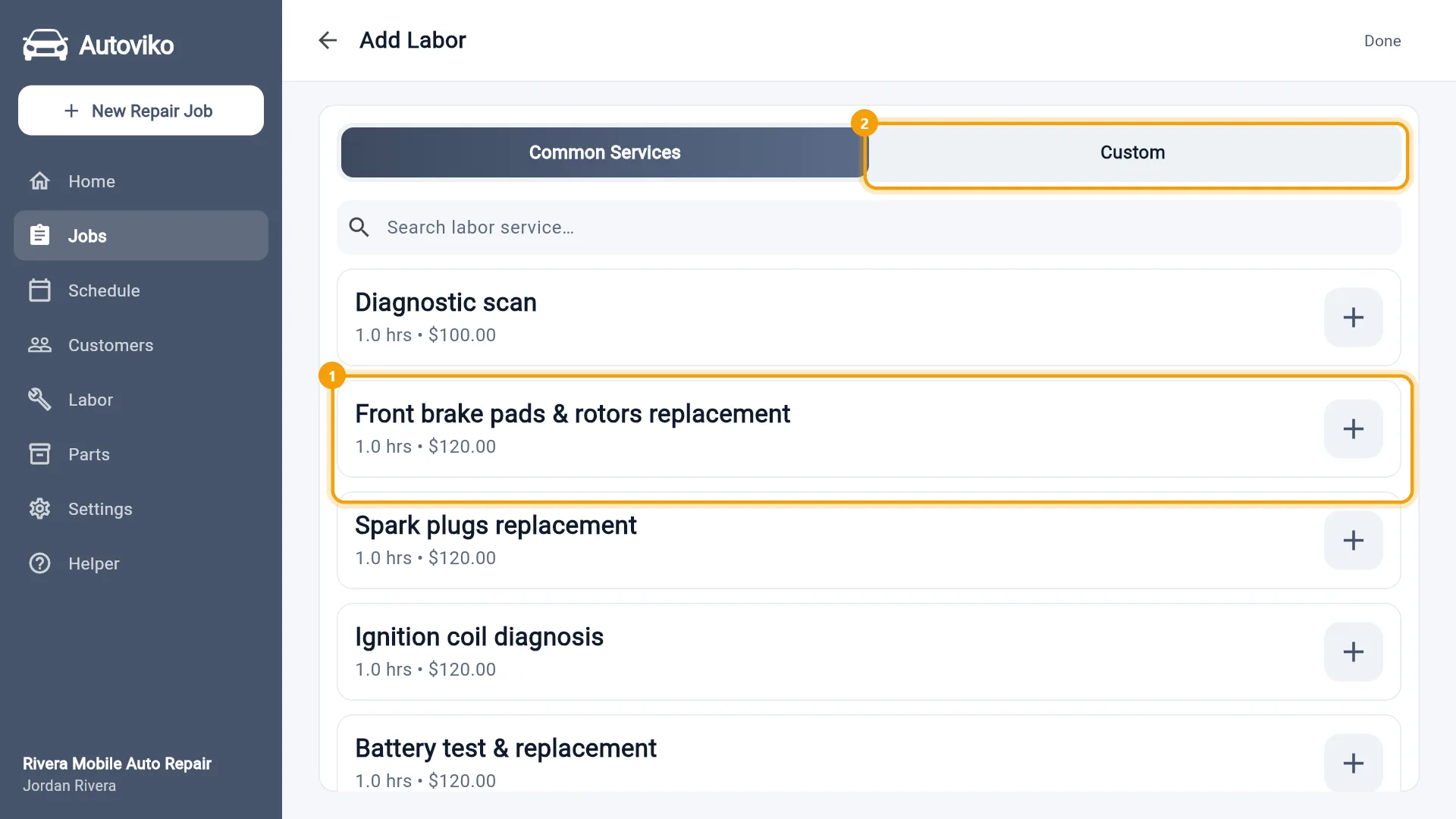
On the new job, click Add Parts or Labor (or Add Labor on the job page). Click + next to a common service, or switch to Custom to type one.
- 2
Add the parts
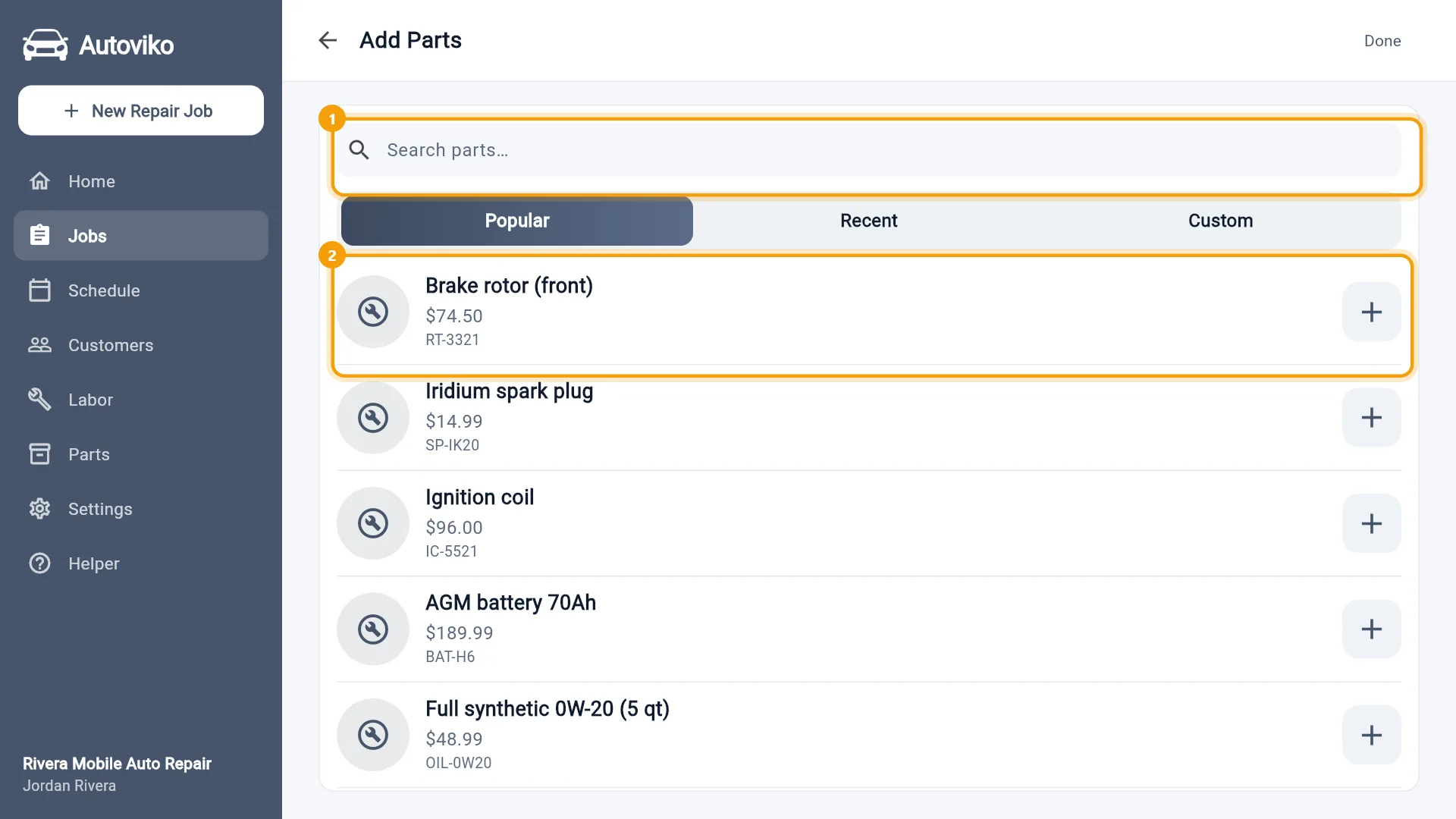
Click Done, then Add Parts. Search your parts, click + to add one, or use Custom for a one-off part.
- 3
Check the estimate
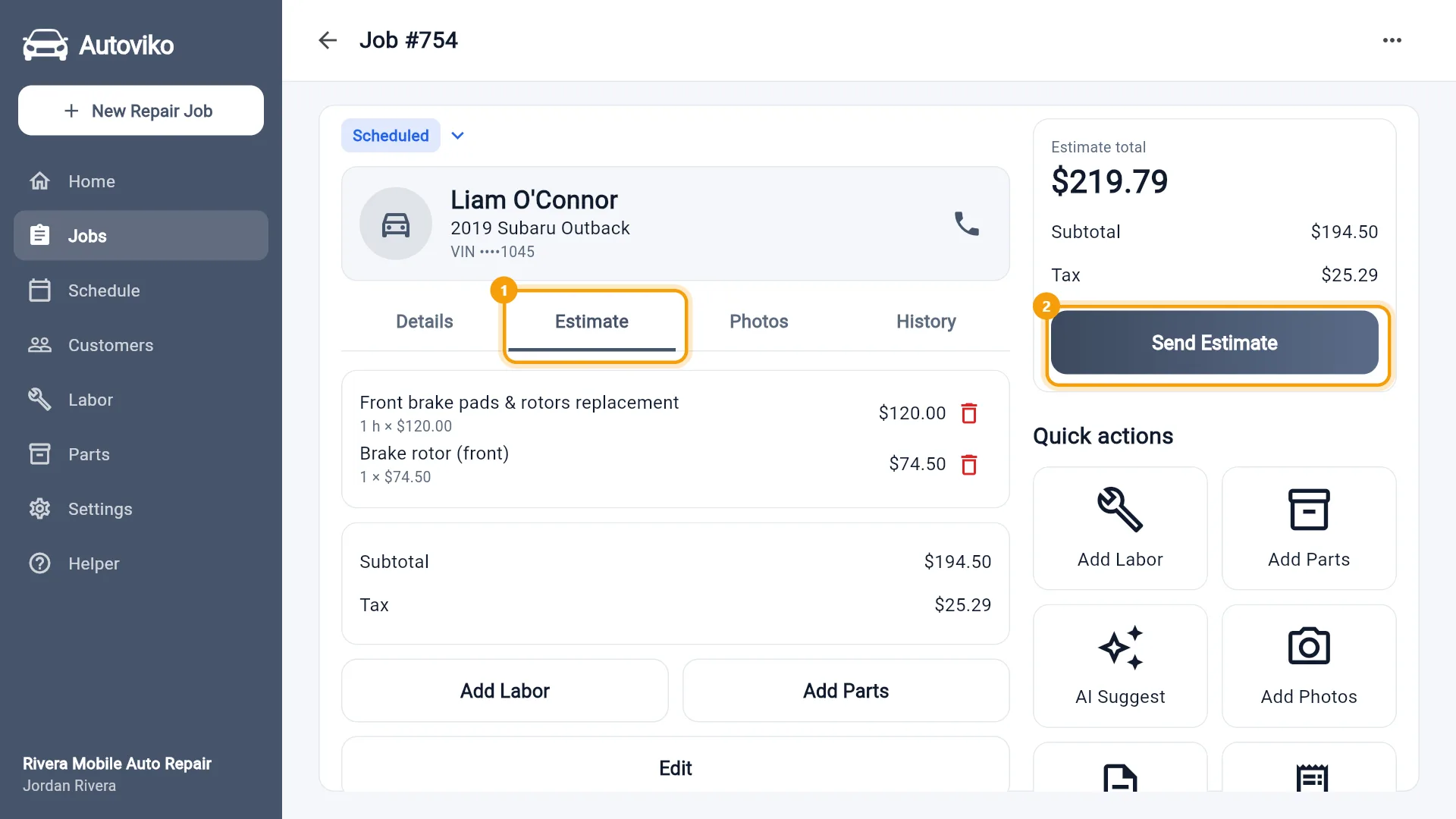
Click Done and open the Estimate tab. Every line is there with the subtotal, tax and Estimate total, calculated for you.
- 4
Review and send
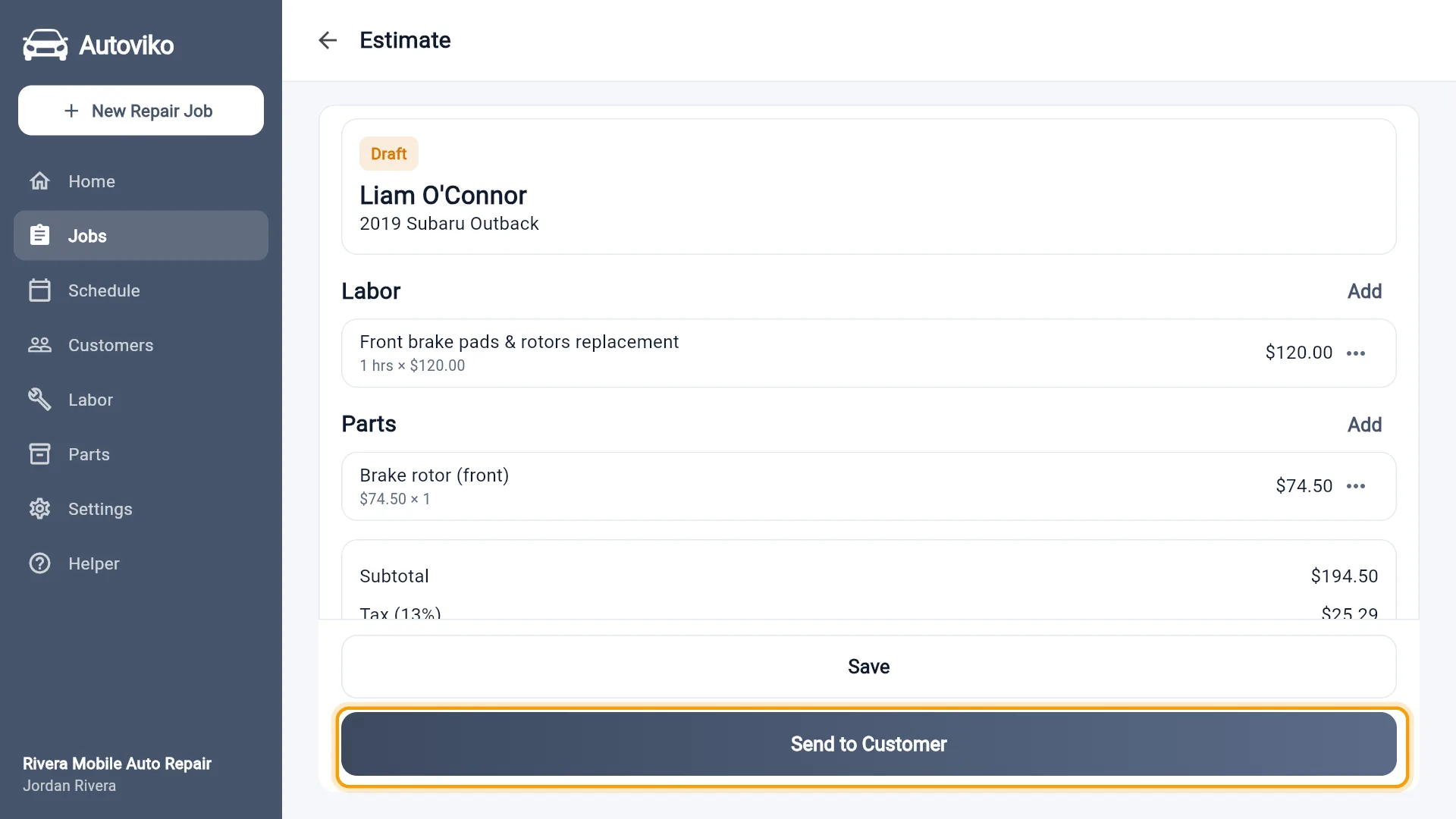
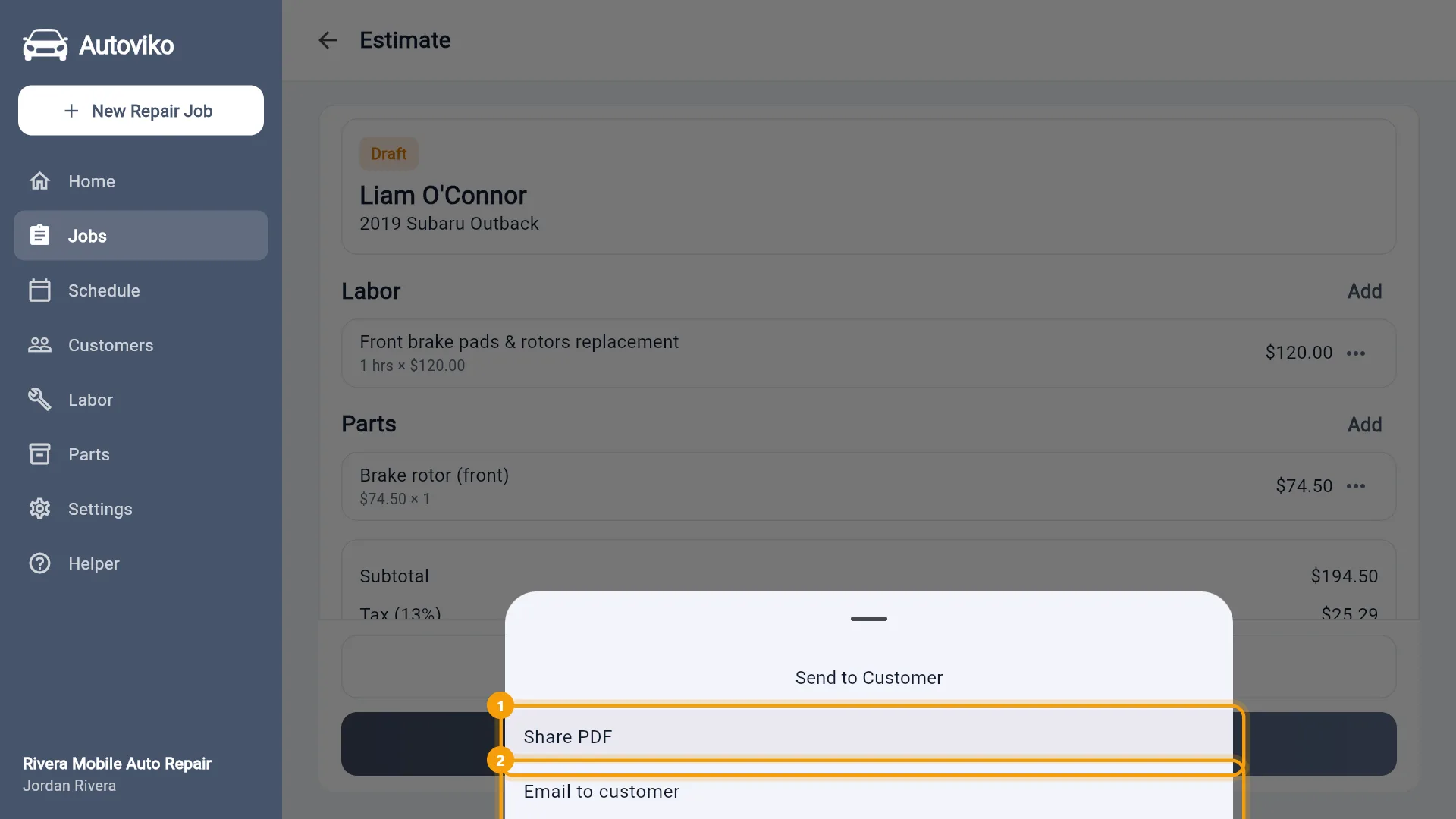
Click Send Estimate. Change a line with ⋯ or add more with Add, then click Send to Customer.
- 5
Email it or share the PDF
Choose Email to customer to send the estimate by email, or Share PDF to download it or send it any other way.
Tips
- Email sending is part of the paid plan. During the free trial, use Share PDF.
More in Jobs, estimates & invoices
Screenshots taken from the AutoViko web app in October 2026, using a demo shop with sample data. The same guide is in the app under Helper.