
Create an invoice
When the work is done, turn the job into an invoice in one click. The invoice uses your invoice template and is ready to share as a PDF.
4 steps
Before you start: add the labor and parts to the job (see Create and send an estimate).
- 1
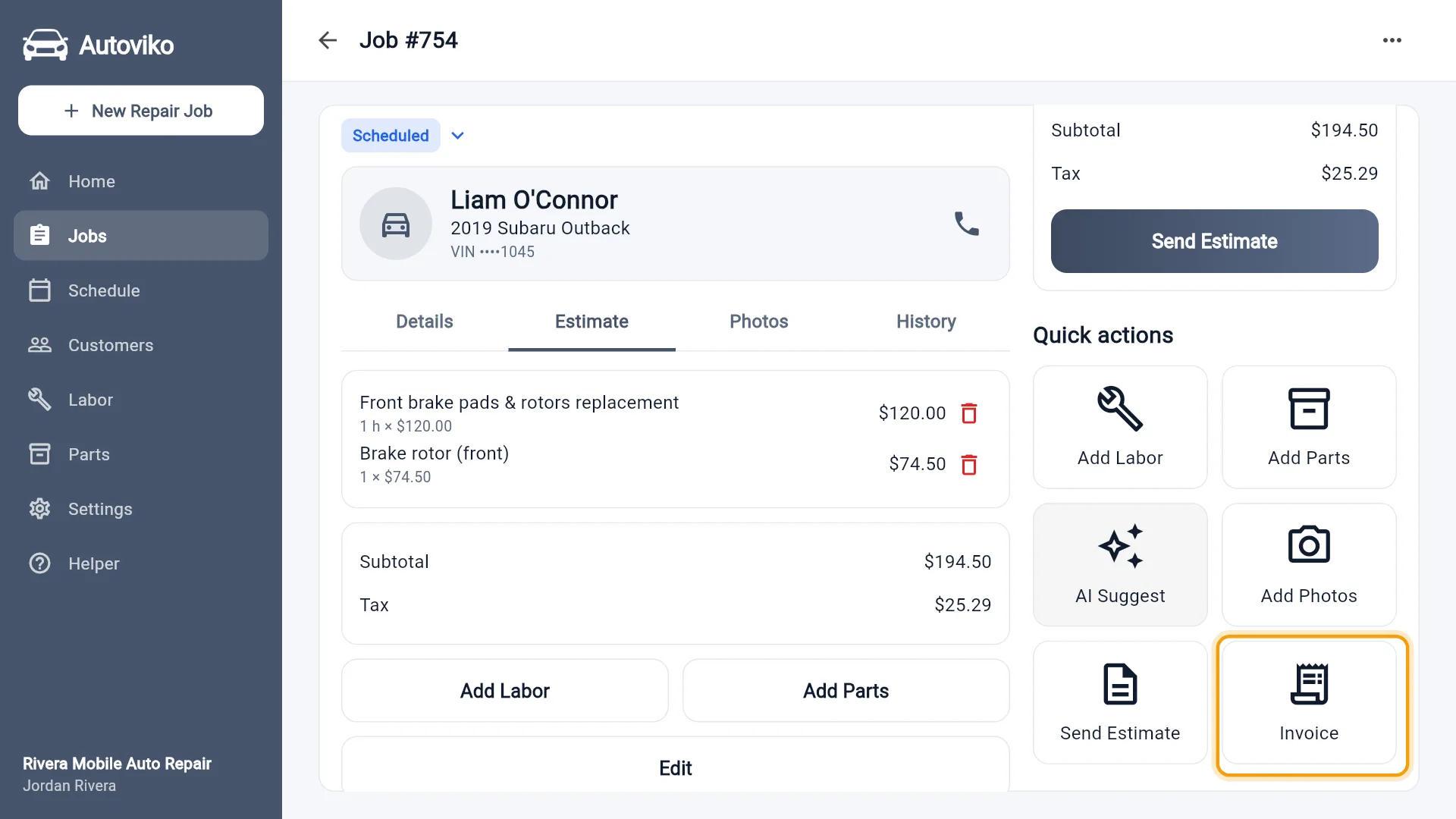
Open the job and click “Invoice”
Open the job (from Jobs or Home) and click Invoice under Quick actions.
- 2
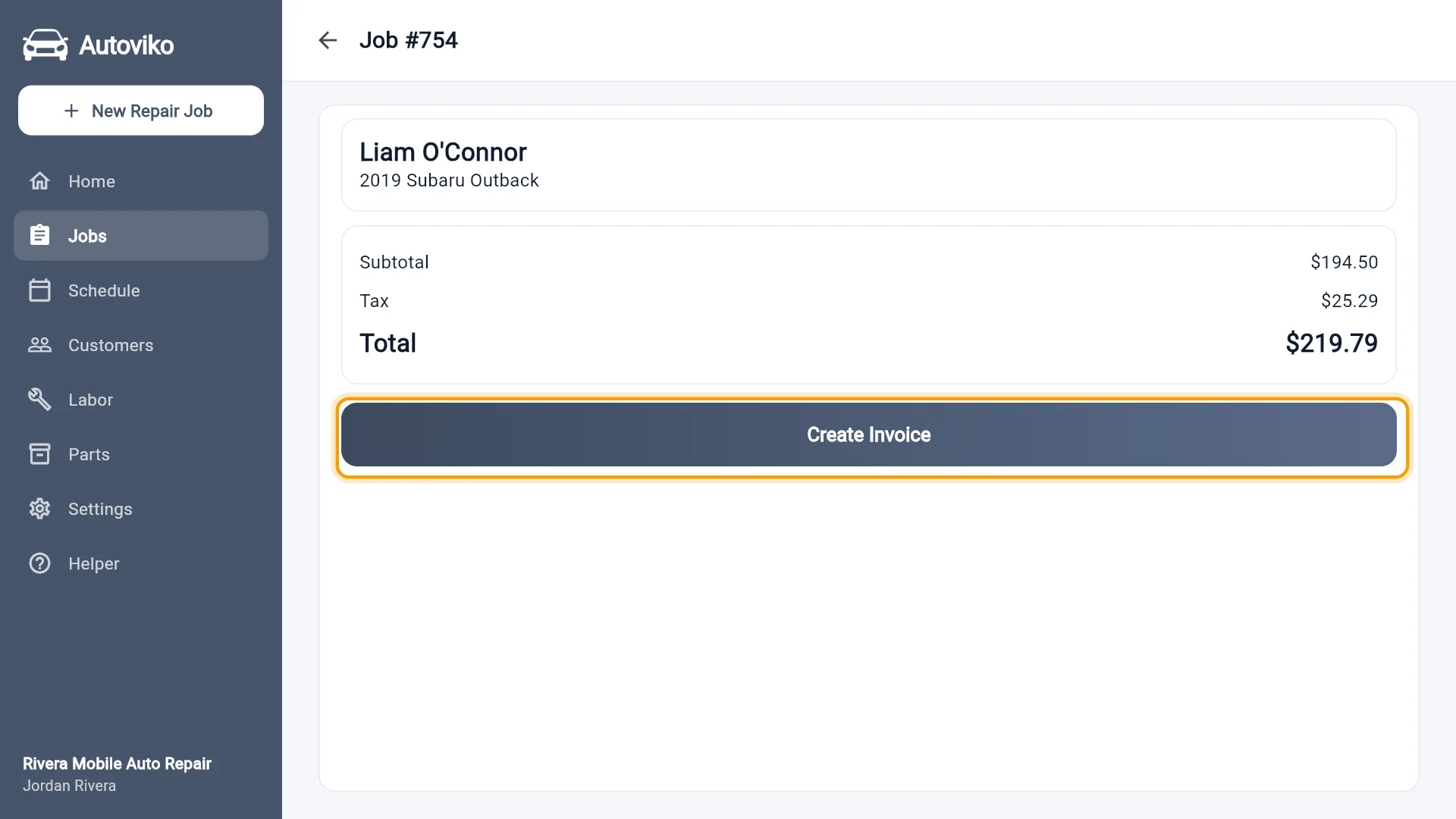
Create the invoice
Check the customer, the vehicle and the total, then click Create Invoice.
- 3
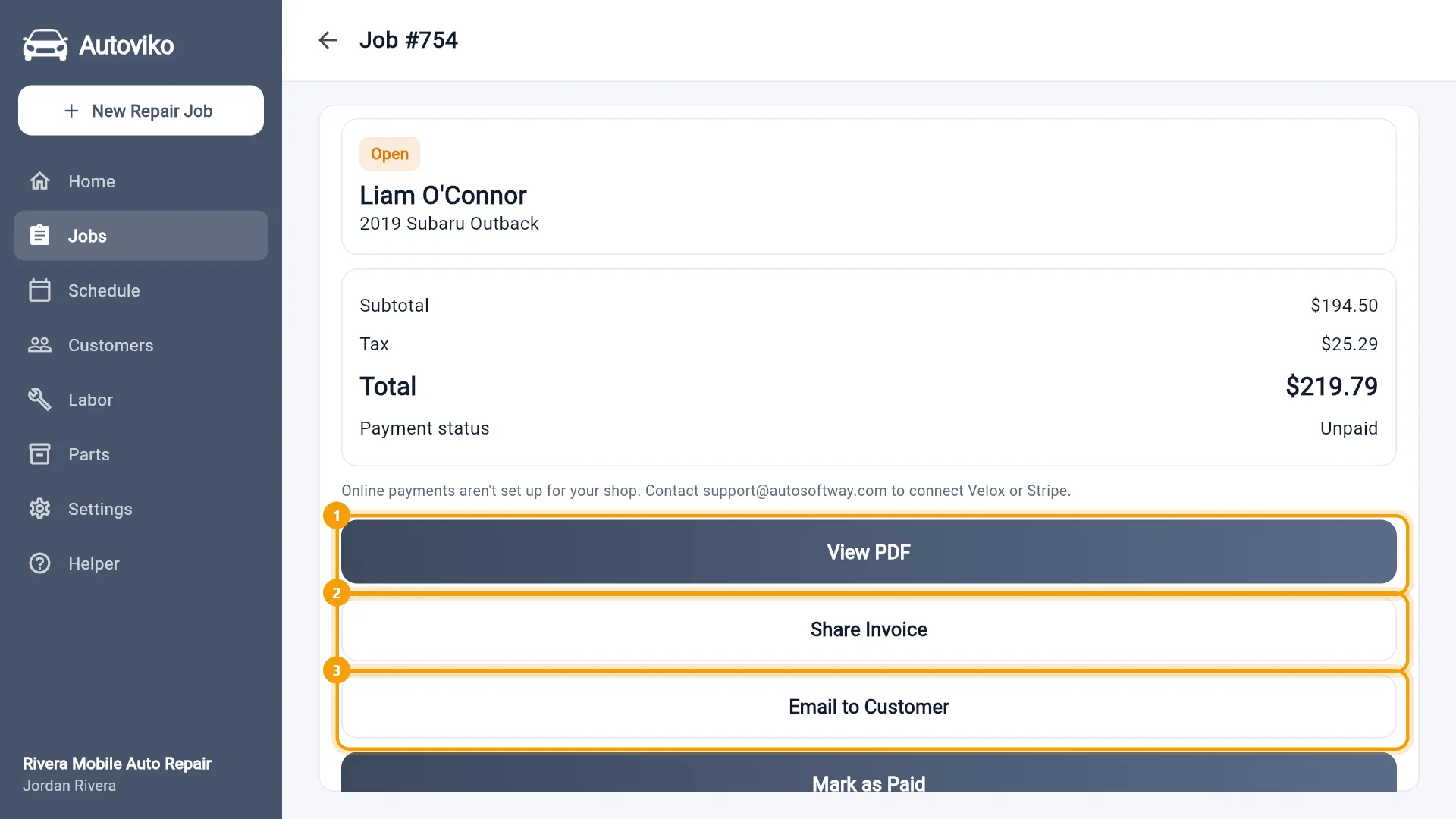
View, share or email it
The invoice is ready. View PDF opens it, Share Invoice downloads or shares the PDF, and Email to Customer sends it.
- 4
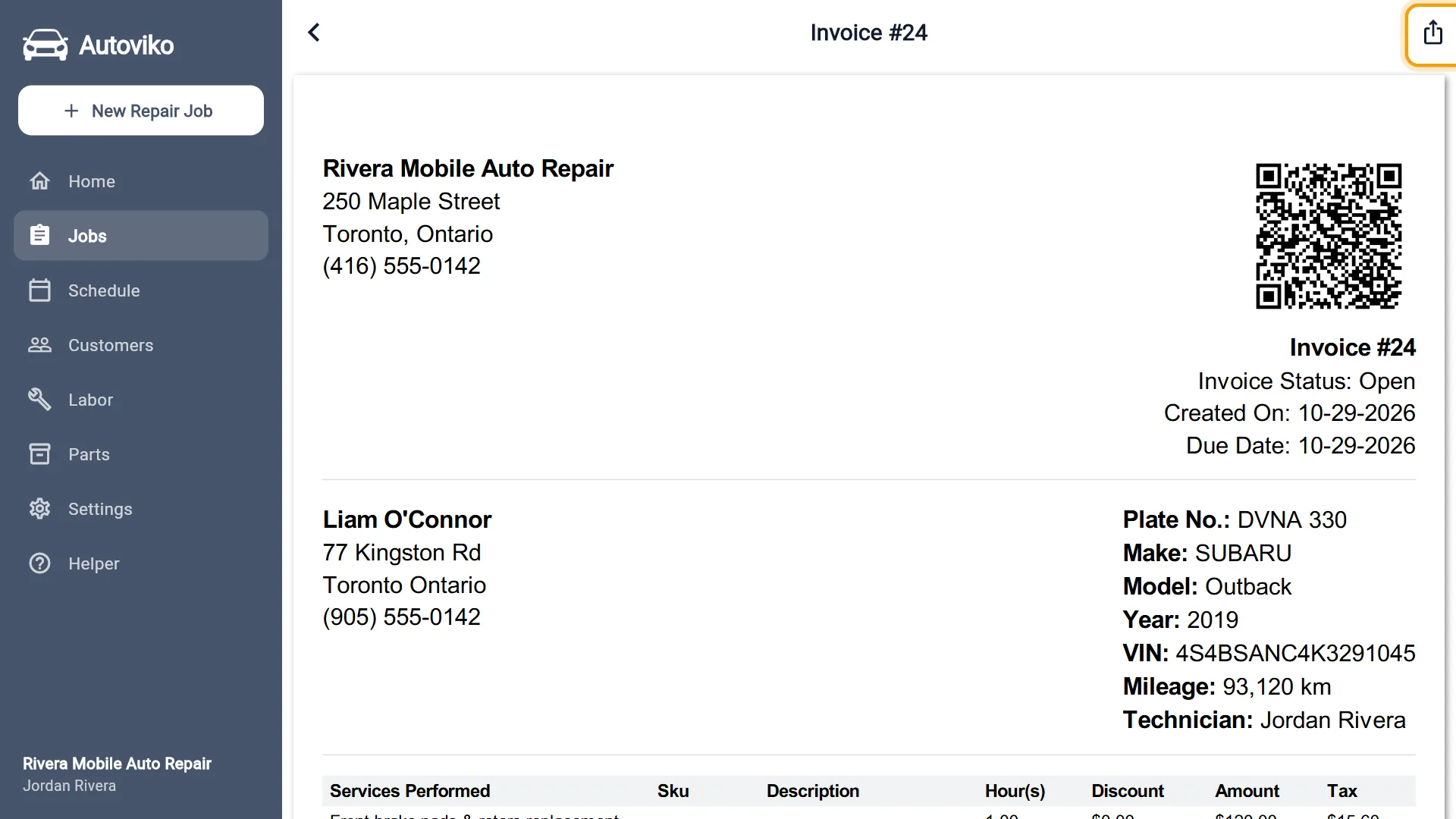
A professional PDF invoice
The PDF shows your business, the customer, the vehicle (plate, VIN, mileage) and every labor and part line with the taxes and total.
Tips
- Want a different look? See Choose your invoice template.
More in Jobs, estimates & invoices
Screenshots taken from the AutoViko web app in October 2026, using a demo shop with sample data. The same guide is in the app under Helper.