
Mark an invoice as paid
Record how the customer paid, so you always know which jobs are paid and which are still open.
3 steps
- 1
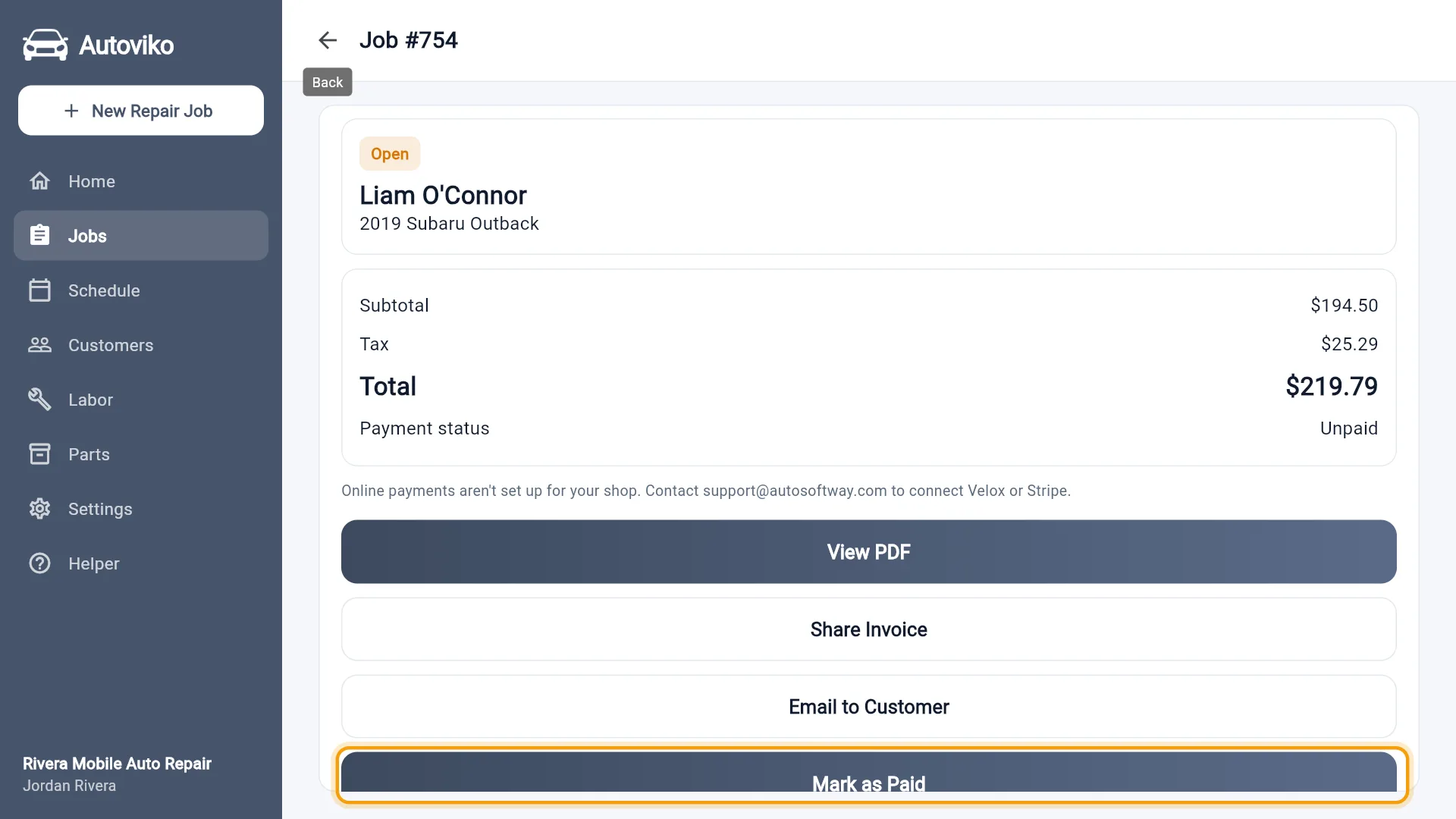
Click “Mark as Paid”
On the invoice, click Mark as Paid.
- 2
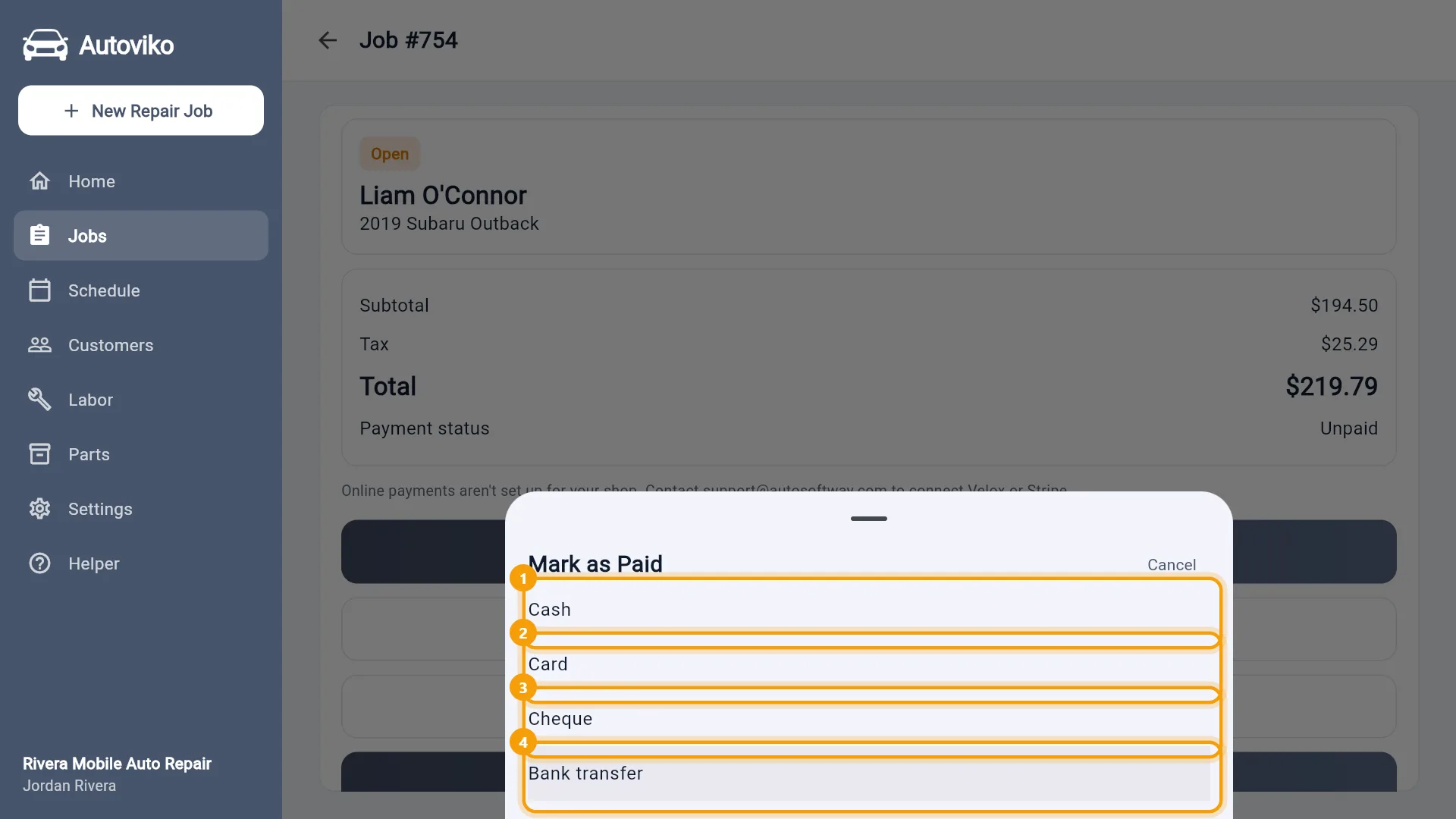
Choose how they paid
Pick Cash, Card, Cheque or Bank transfer.
- 3
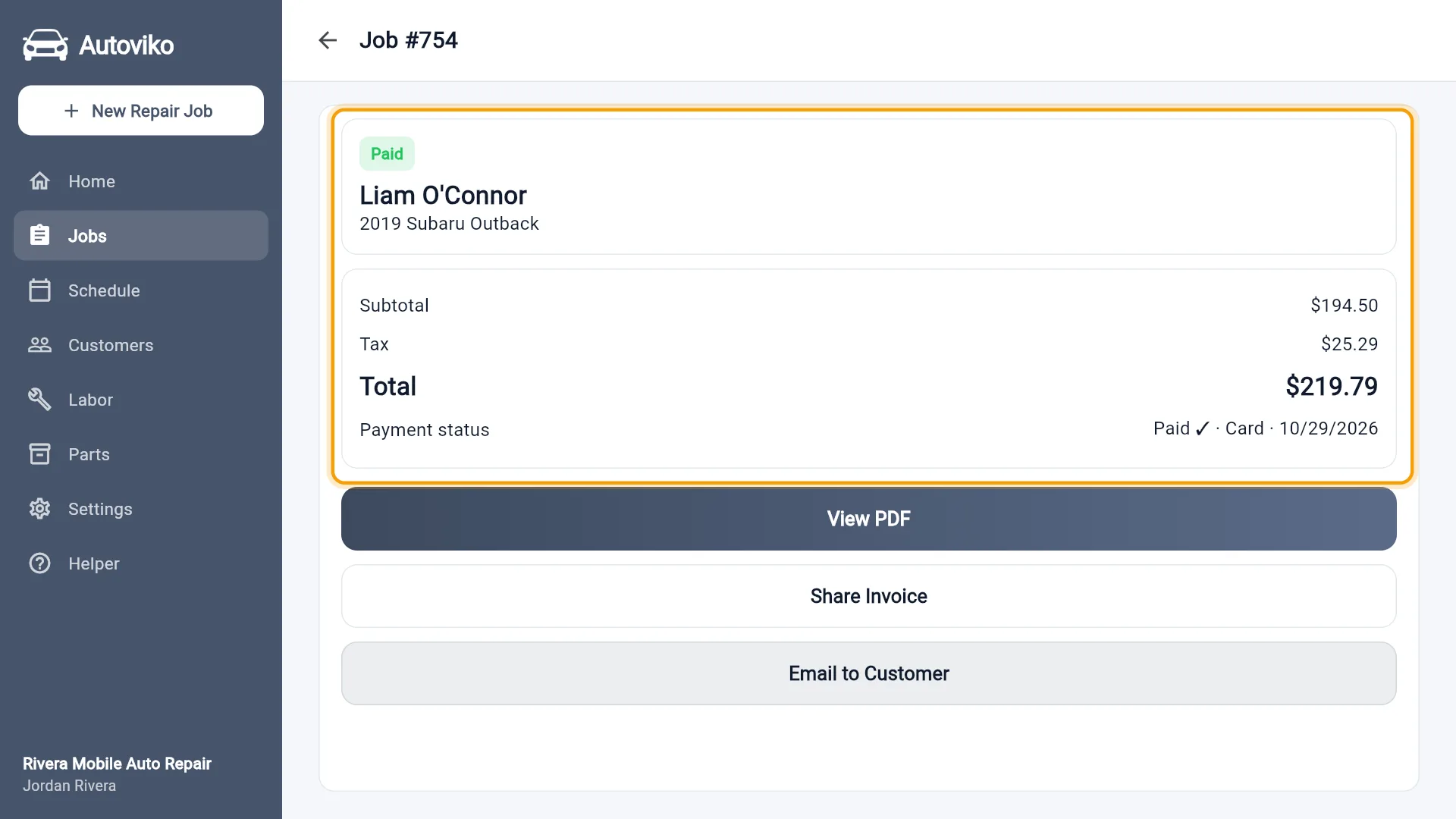
The invoice is paid
The invoice shows Paid with the payment method and date, and the job moves to the Done list under Jobs.
More in Jobs, estimates & invoices
Screenshots taken from the AutoViko web app in October 2026, using a demo shop with sample data. The same guide is in the app under Helper.